¶ Pairing mode
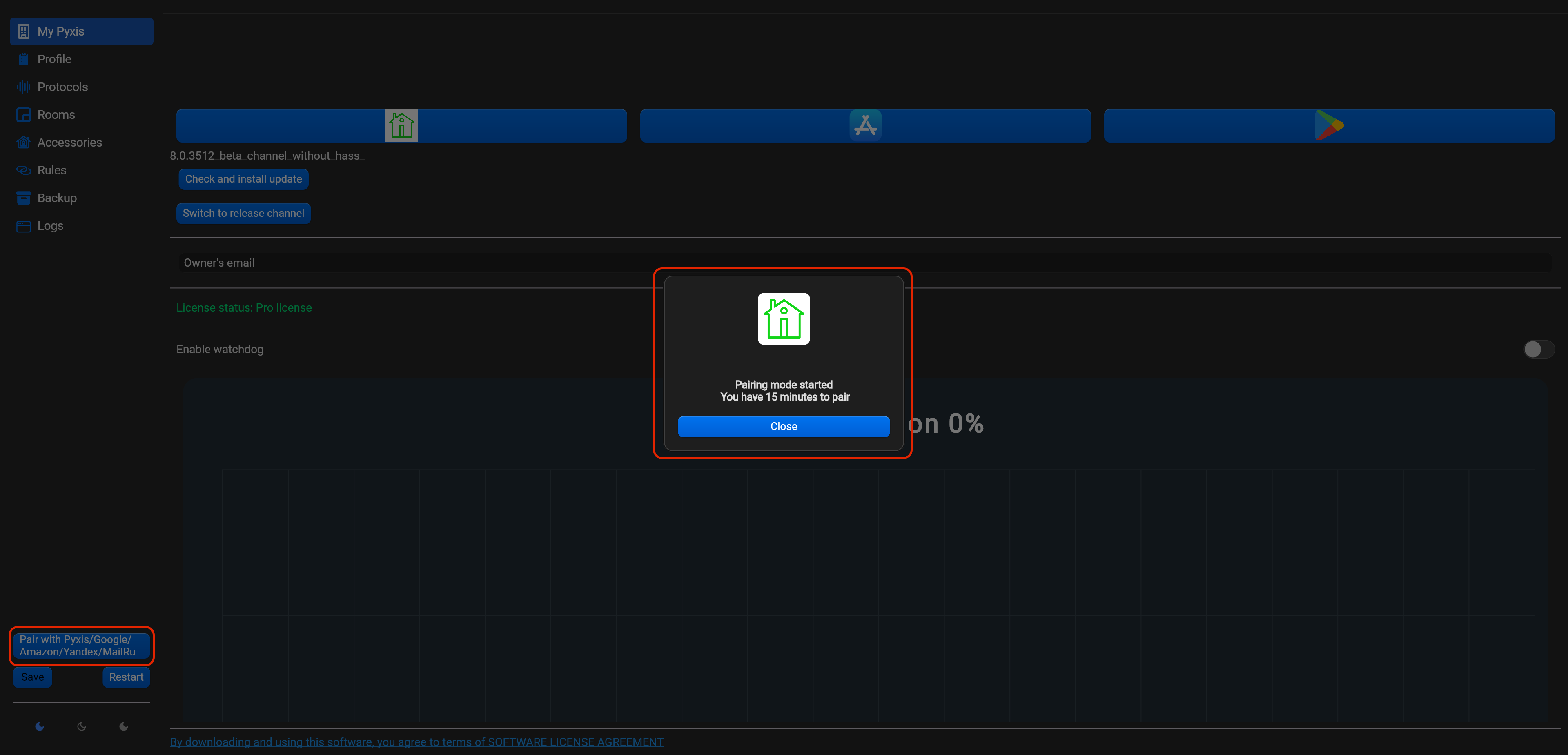
This mode allow to pair Google Assistant, Amazon Alexa, Yandex Алиса, Marusia and Pyxis app. To start pairing mode, click “Pair with Google / Amazon / Yandex / Mail.ru” in the left-bottom. You will see notification about starting pairing for 15 minutes. Please, make all actions within 15 minutes.
¶ Apple Homekit
Pyxis provide integration with Apple Homekit (not certified) for free. You can find more about Apple Homekit here.
For pairing Apple Homekit, find in “Protocols” Homekit option. You can enable/disable this option, edit name of Homekit bridge, edit Homekit port, Homekit pin, advertiser type (CIAO, Bonjur, Avahi) and QR for adding in Homekit or unpair of Homekit.

¶ Google Assistant
Pyxis provide integration with Google Assistant. Please, follow next steps for using this feature:
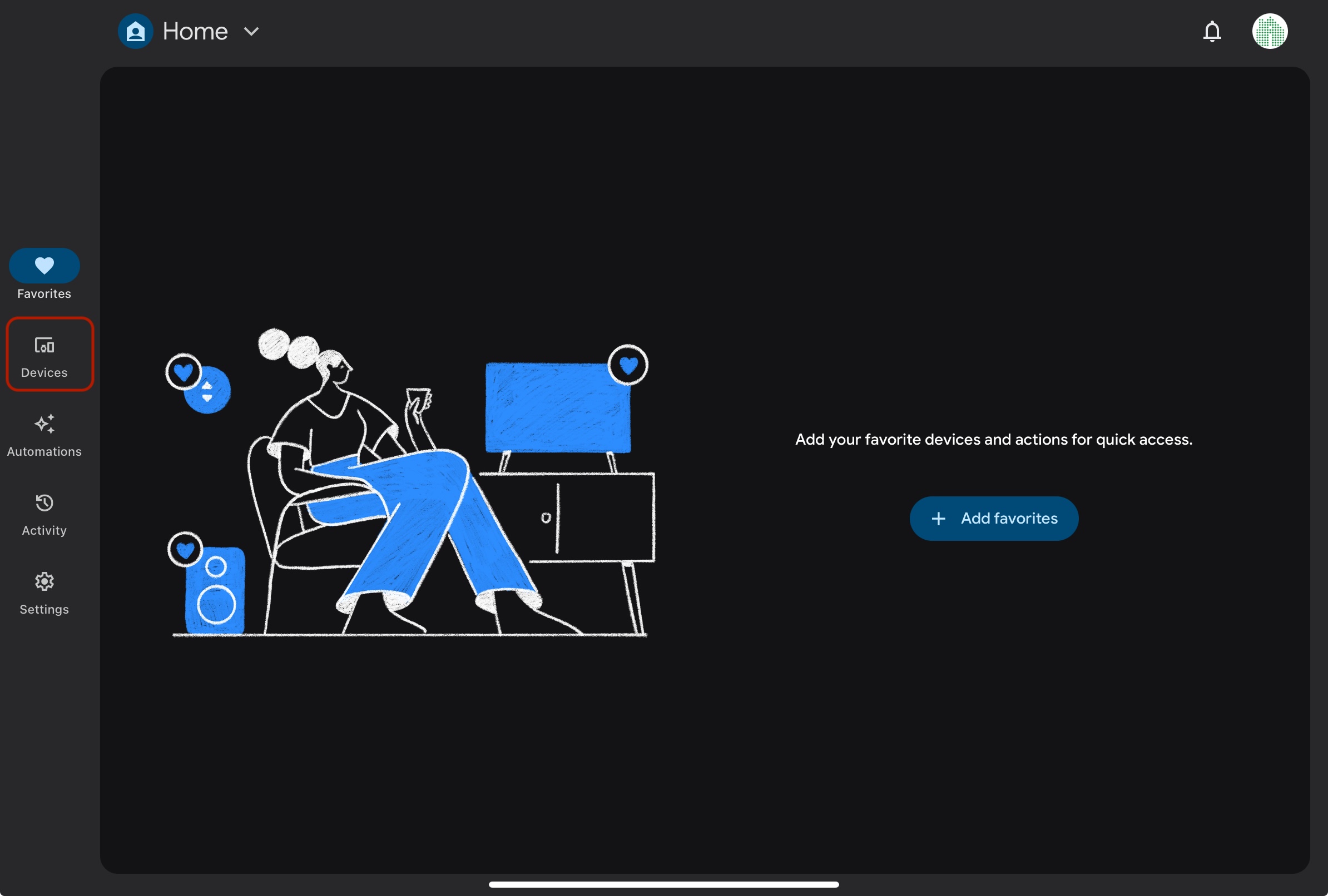
a) Open Google Home app on your Tablet or Smartphone and tap on Devices on the left side,
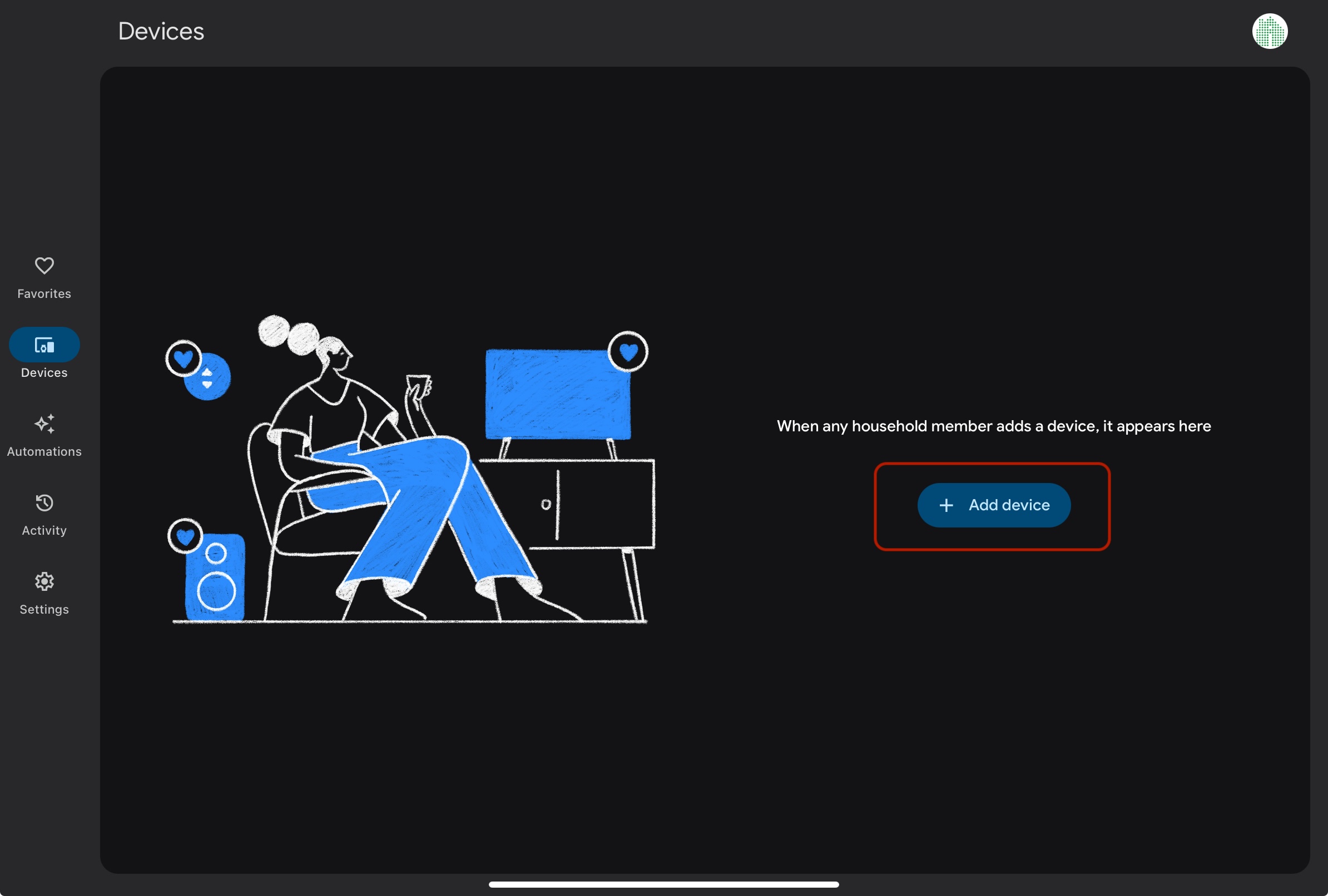
b) Find “Add device" and tap on it.
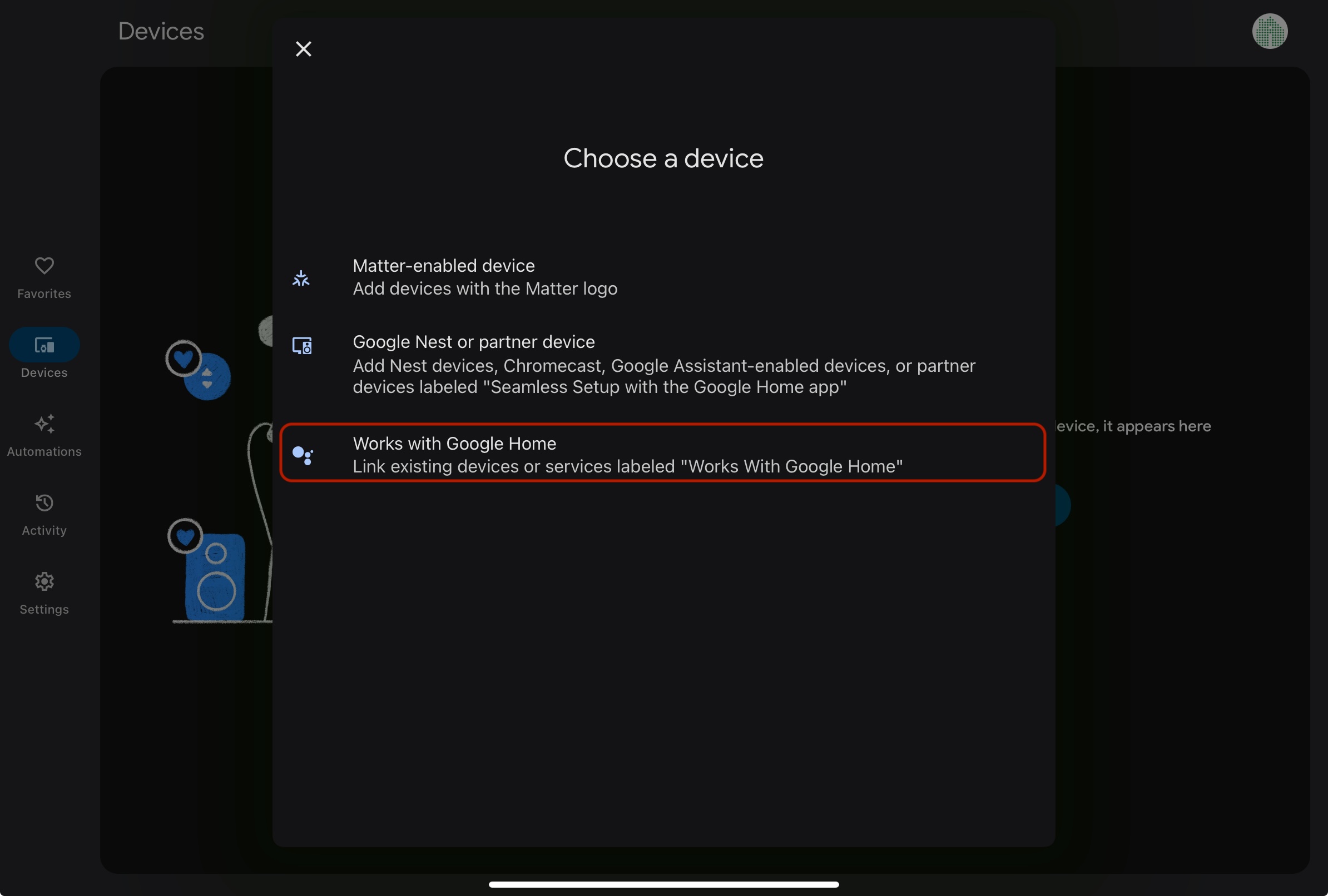
c) On next step tap on “Works with Google Home".
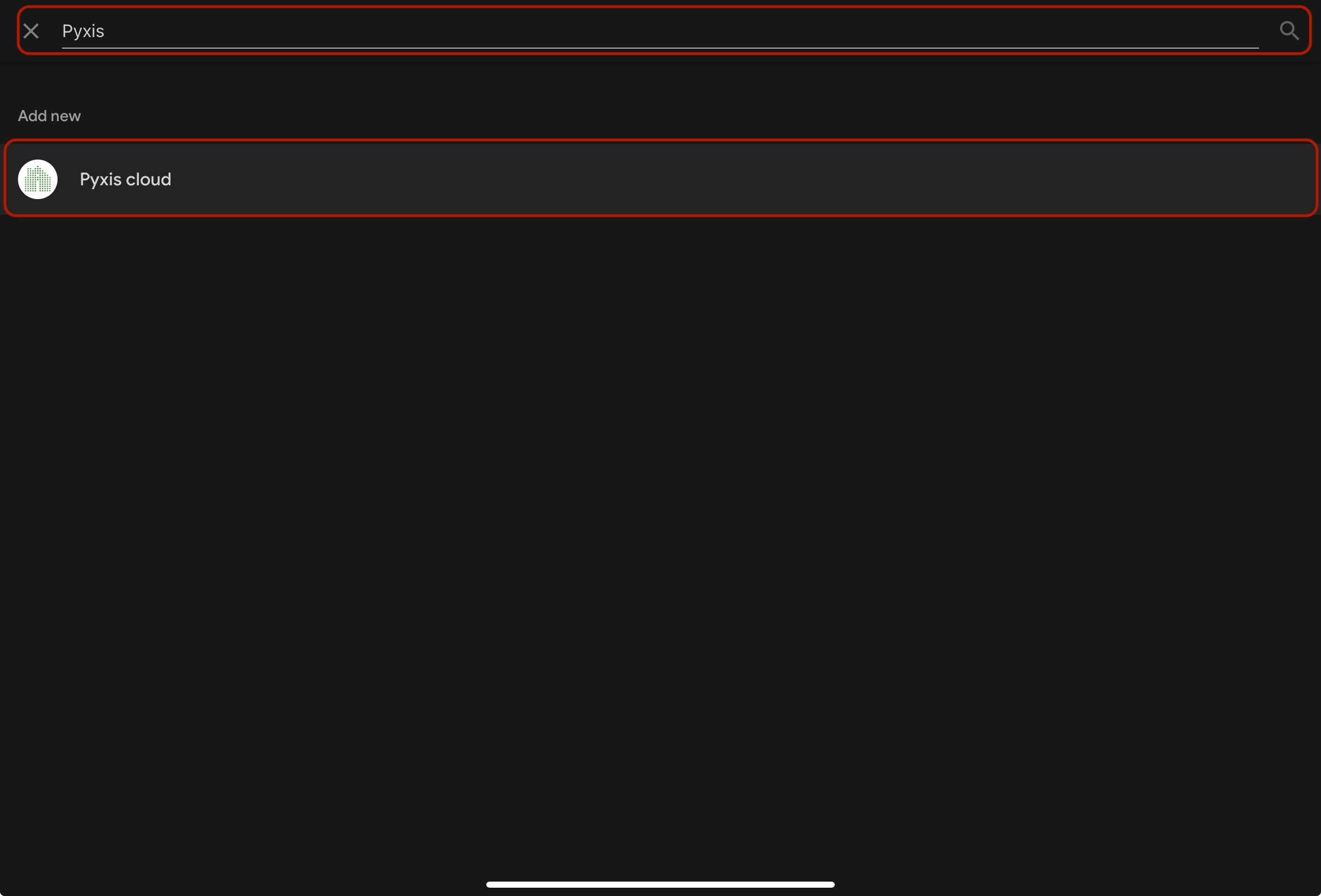
d) Find in search “Pyxis cloud”, tap on it and link Pyxis cloud account.
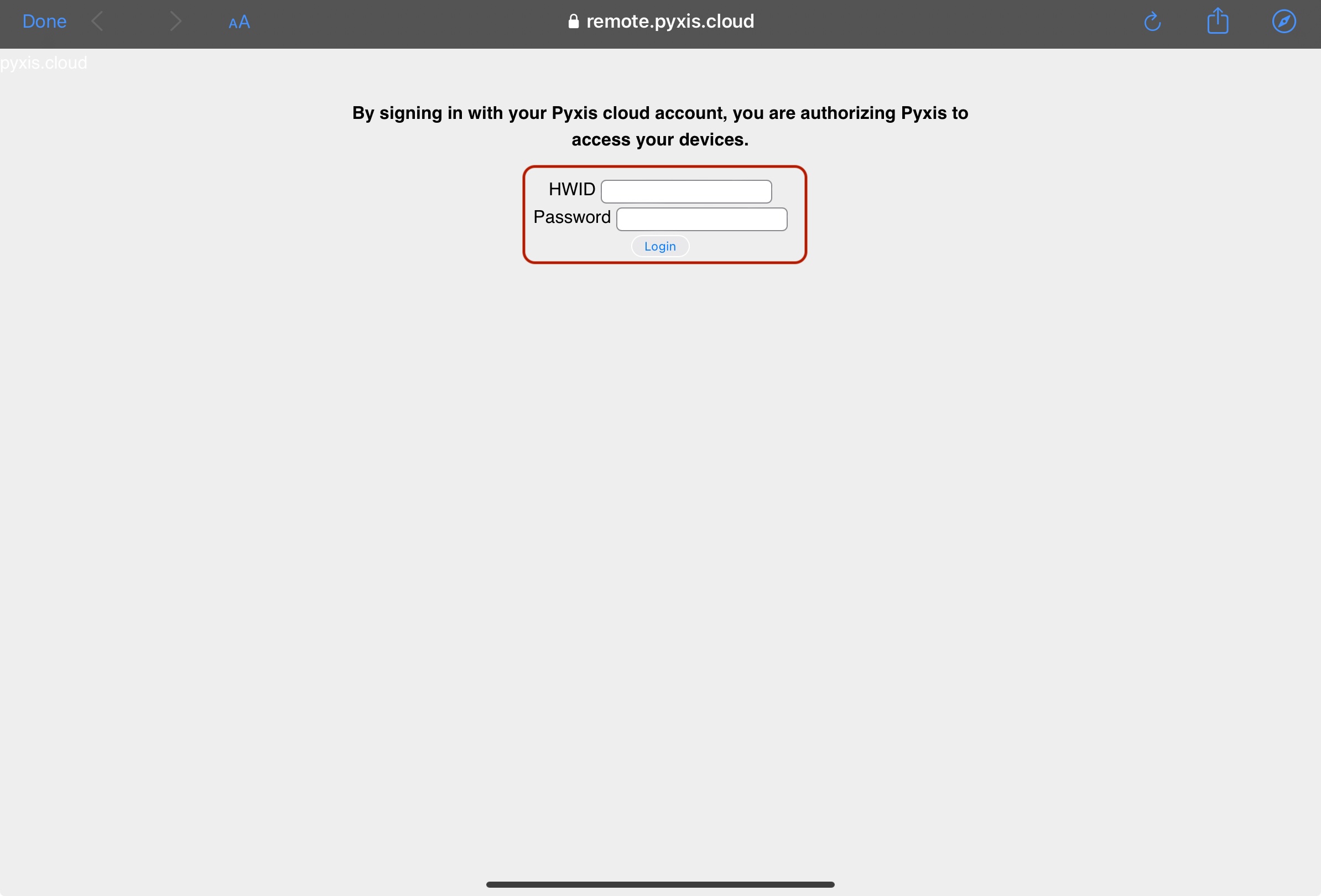
e) You will be redirect to authorization page. Put HWID of your mini PC or PLC and password from section “Profile" (default – admin).
f) Wait while your devices connect to Google Assistant. After finish pairing you will see list of devices. You can rename devices, assign to rooms, create routines etc.
g) After pairing with Google Assistant, restart Pyxis
Examples of voice commands:
“Turn on/off the living room lights”
“Dim bedroom lights to 50%”
“Change living lights to [color]”
“Turn temperature to 72 degrees”
“Raise temperature 5 degrees”
¶ Amazon Alexa
Pyxis provide integration with Amazon Alexa. Please, follow next steps for using this feature:
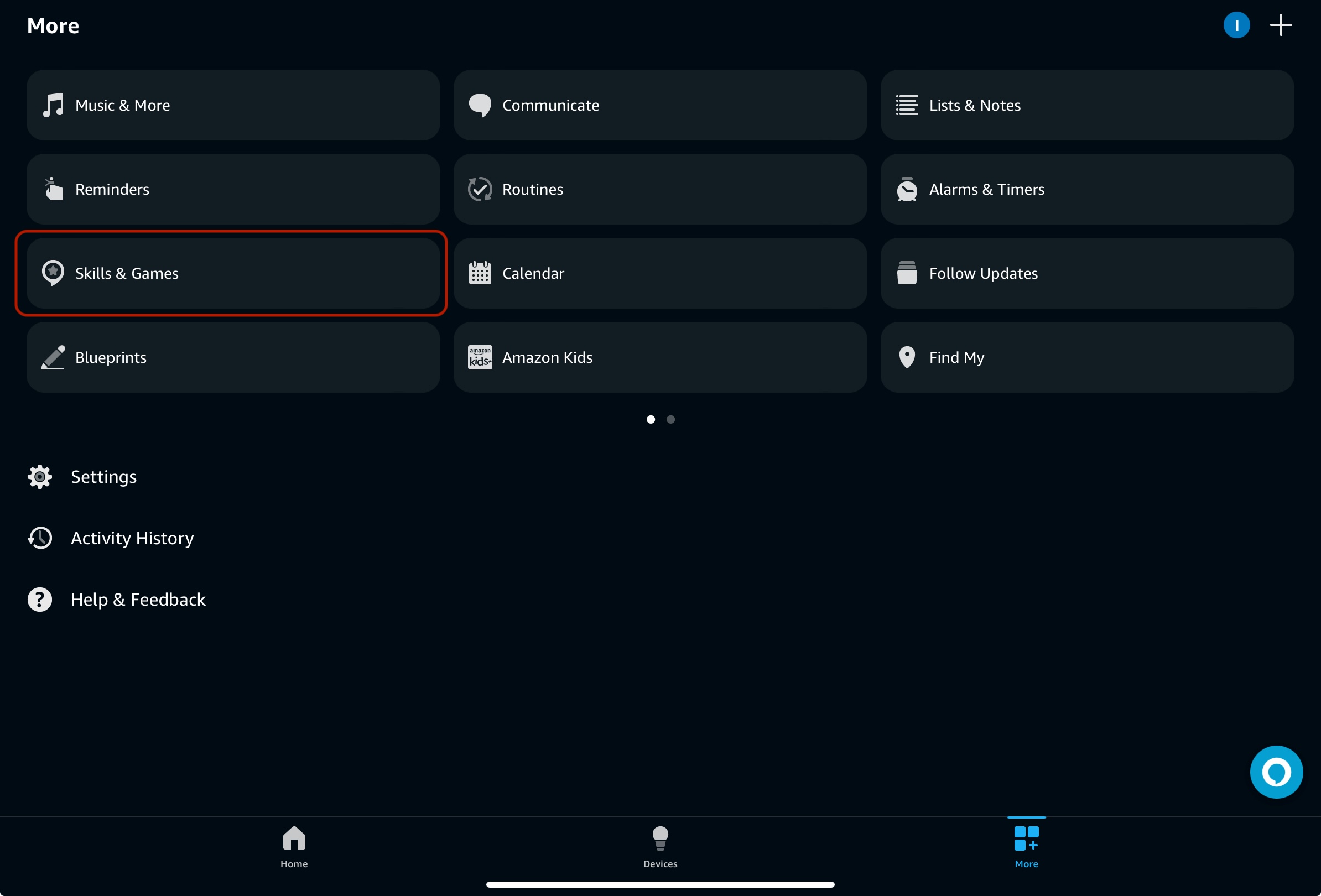
a) Open Amazon Alexa App on your Tablet or Smartphone and find “More” option in the bottom-right.
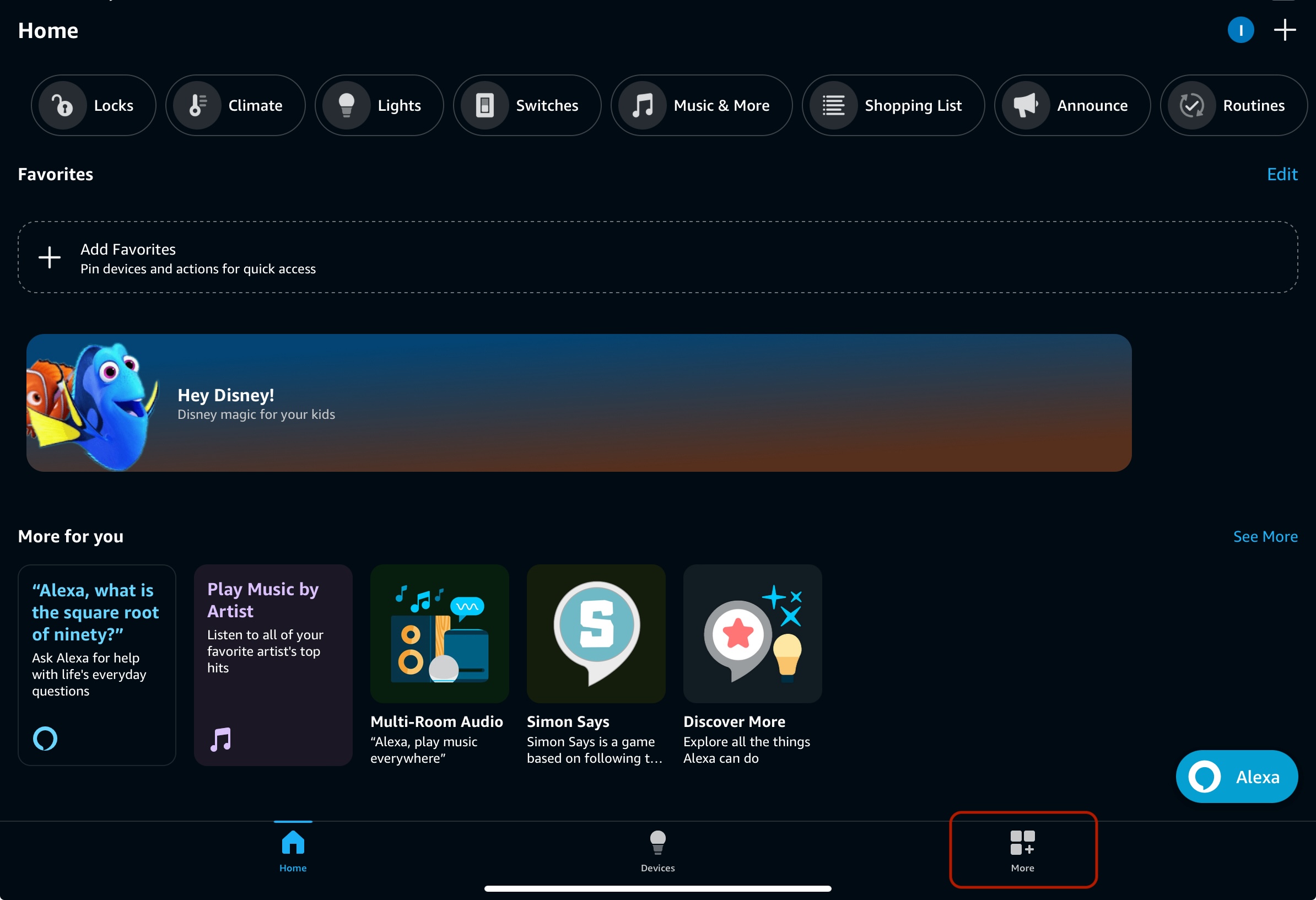
b) Find in “More” section, “Skills & Games”.
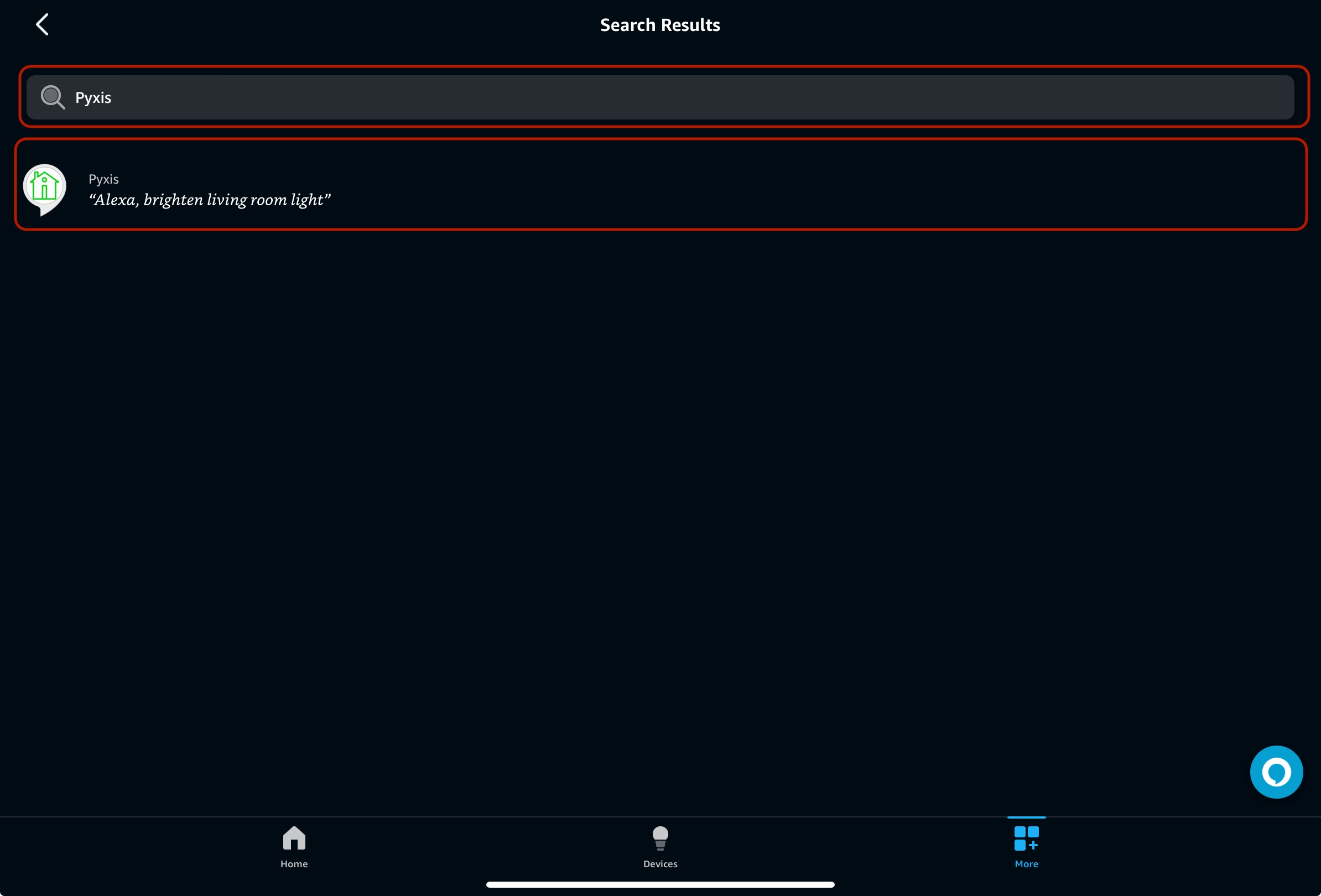
c) Then in search, find Pyxis skill and enable it.
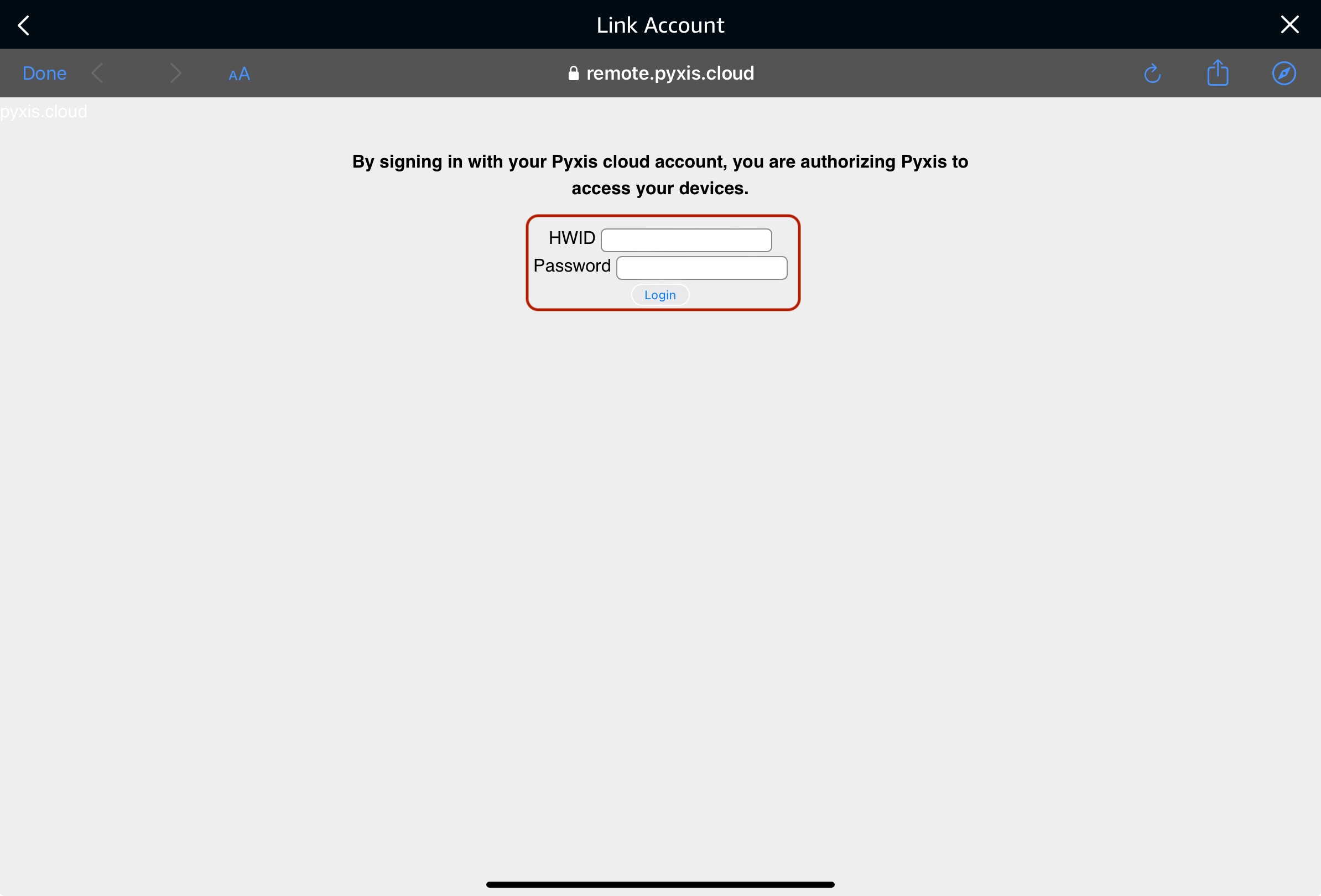
d) You will be redirect to authorization page. Put HWID of your mini PC or PLC and password from section “Profile" (default – admin).
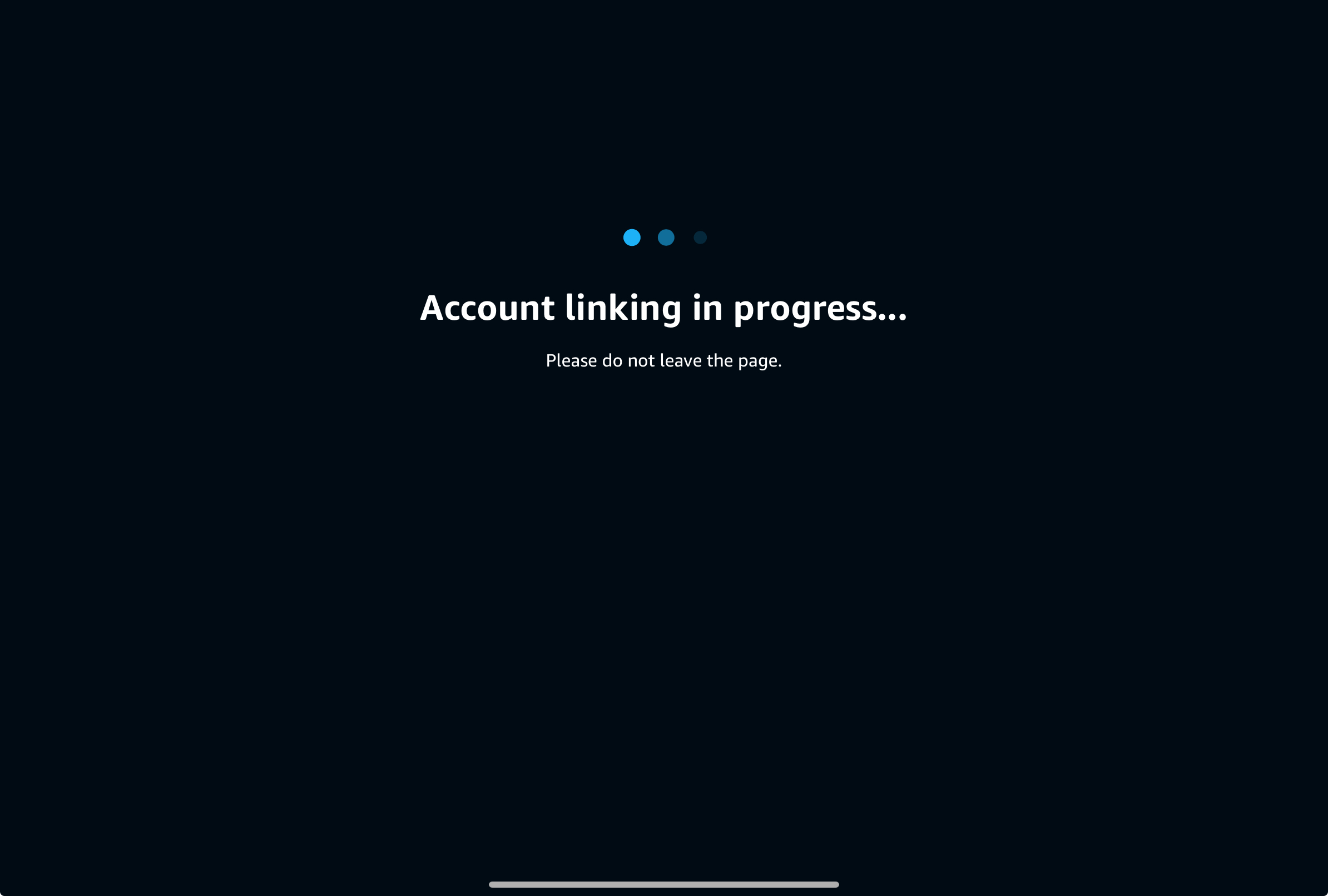
e) Wait while your devices connect to Amazon Alexa, you will get notification about linking with Amazon Alexa.
f) In Alexa app start discovering your devices or ask Alexa – “Alexa, find my smarthome devices”.
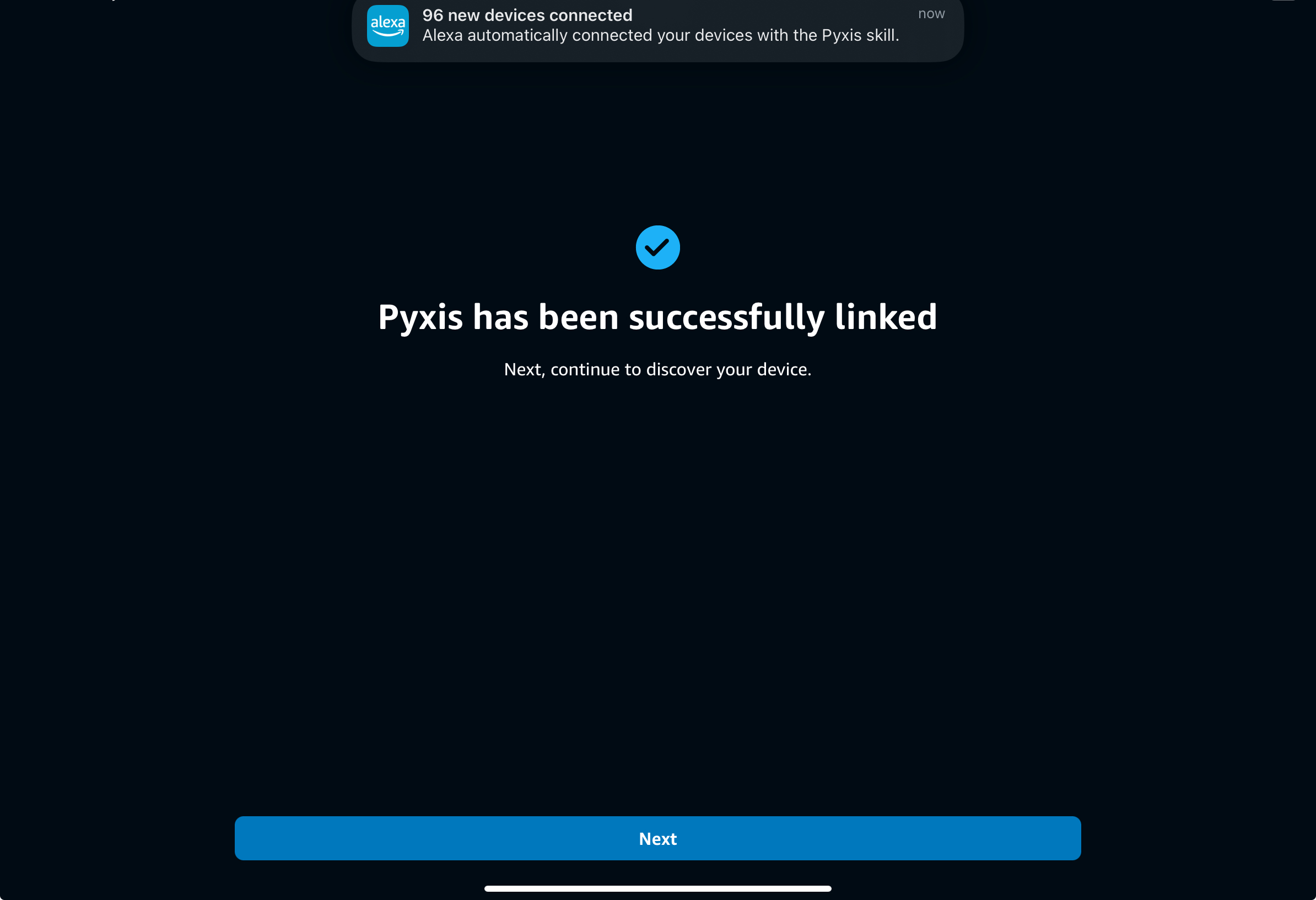
g) When Alexa stop discovering, she will inform you about finding devices. In Alexa App you will see discovered devices.
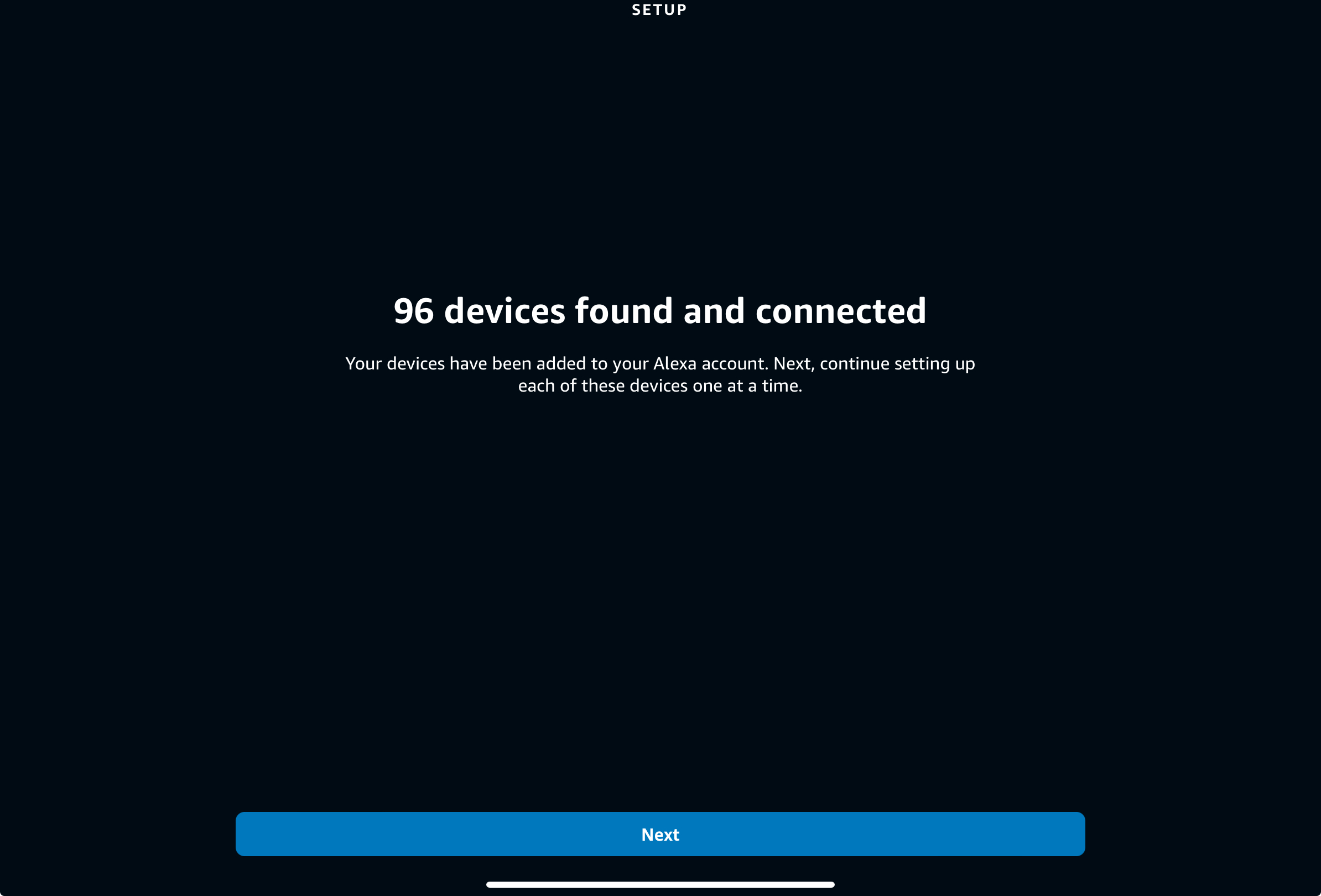
h) After all actions, you can use Alexa for voice control, create rooms, routines and use all features.
¶ Yandex Alice
Pyxis provide integration with Yandex Alice. Yandex Alice - is the first voice assistant in Russia. It supported only Russian language and has own framework. Please, follow next steps for using this feature:
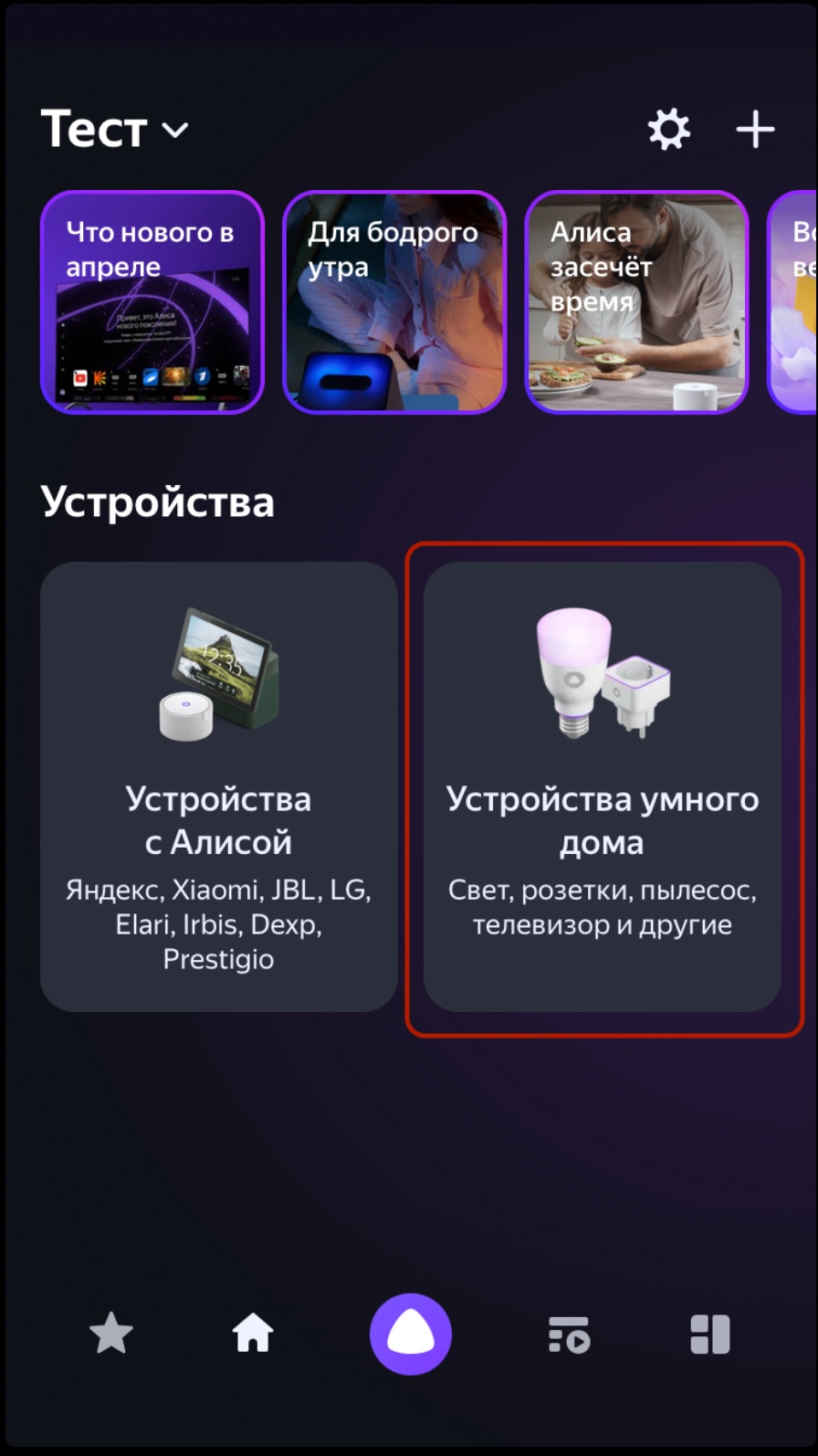
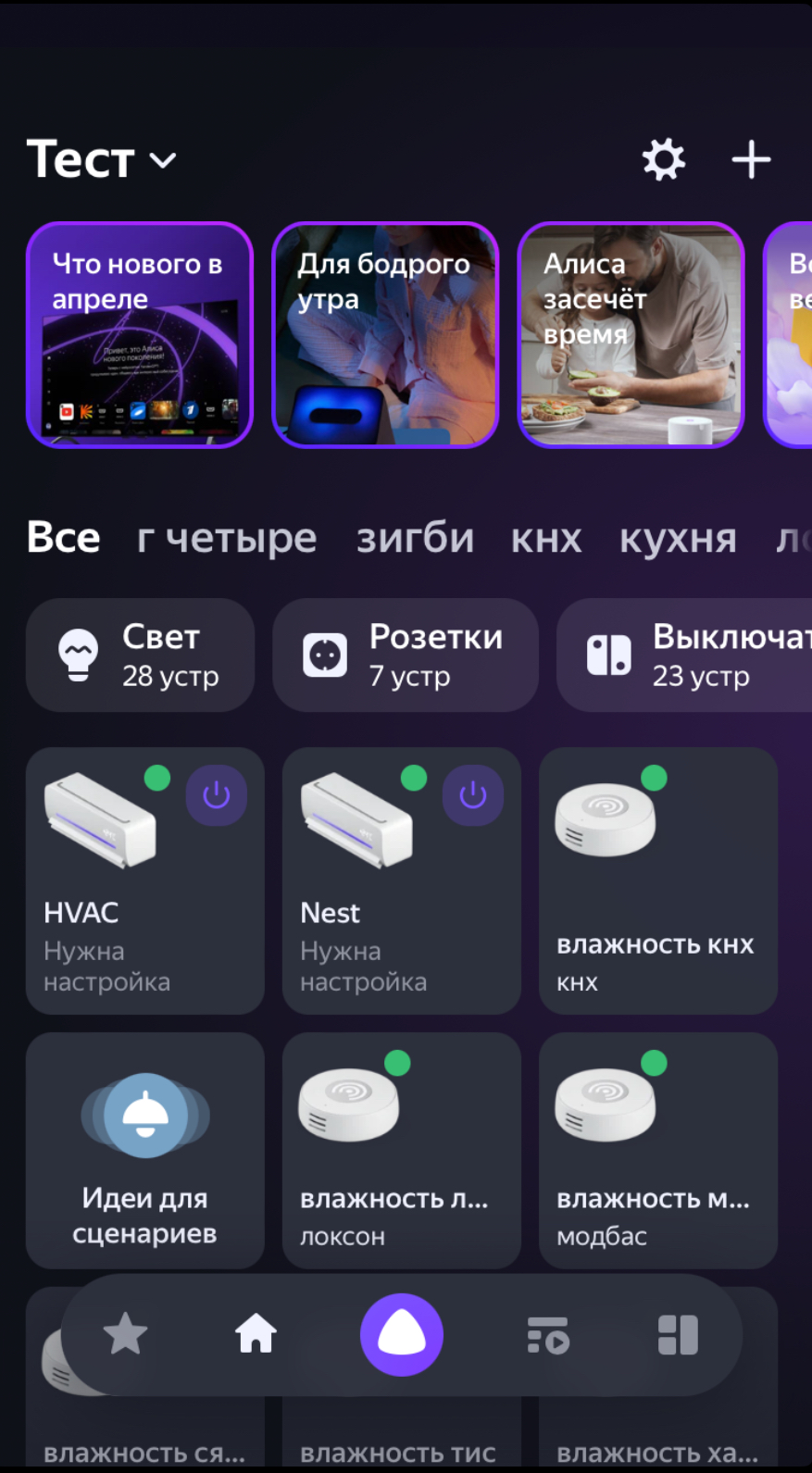
a) Open Yandex Alice app on your Tablet or Smartphone and tap on button “Устройства умного дома ("Smarthome devices").
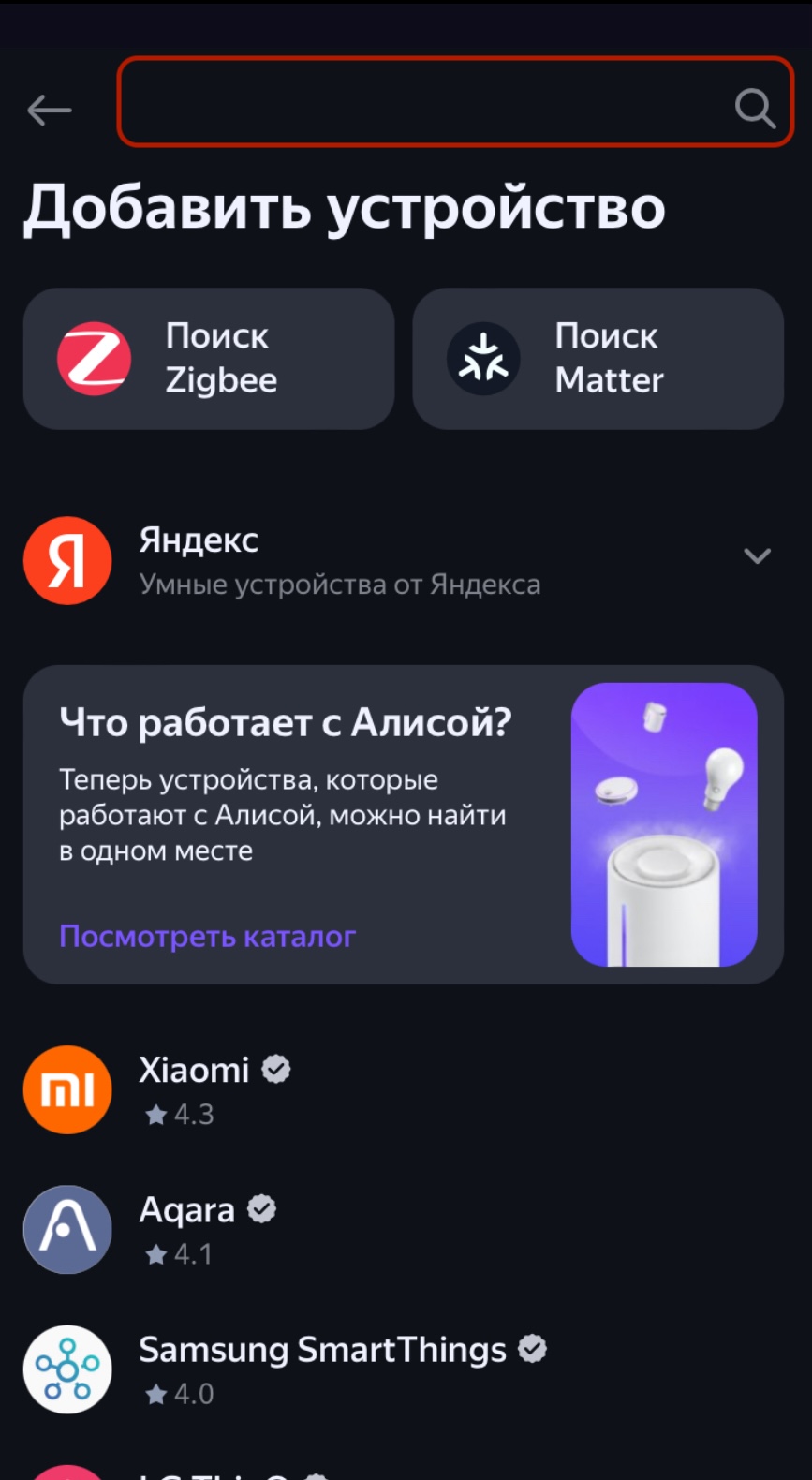
b) On next screen “Добавить устройство” (”Add device”), put in search - Pyxis.
c) Tap on button “Привязать к Яндексу (Bind in Yandex)”,
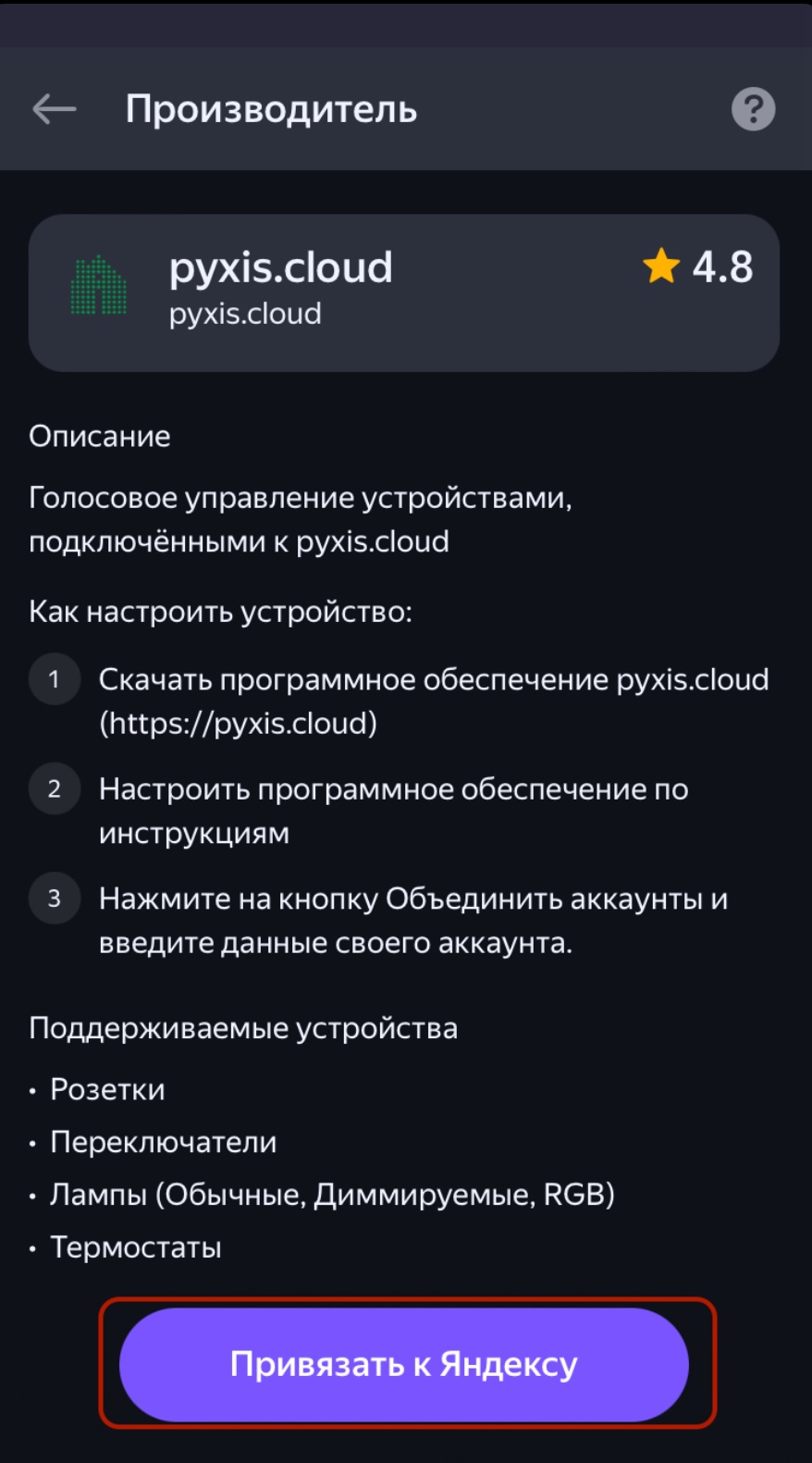
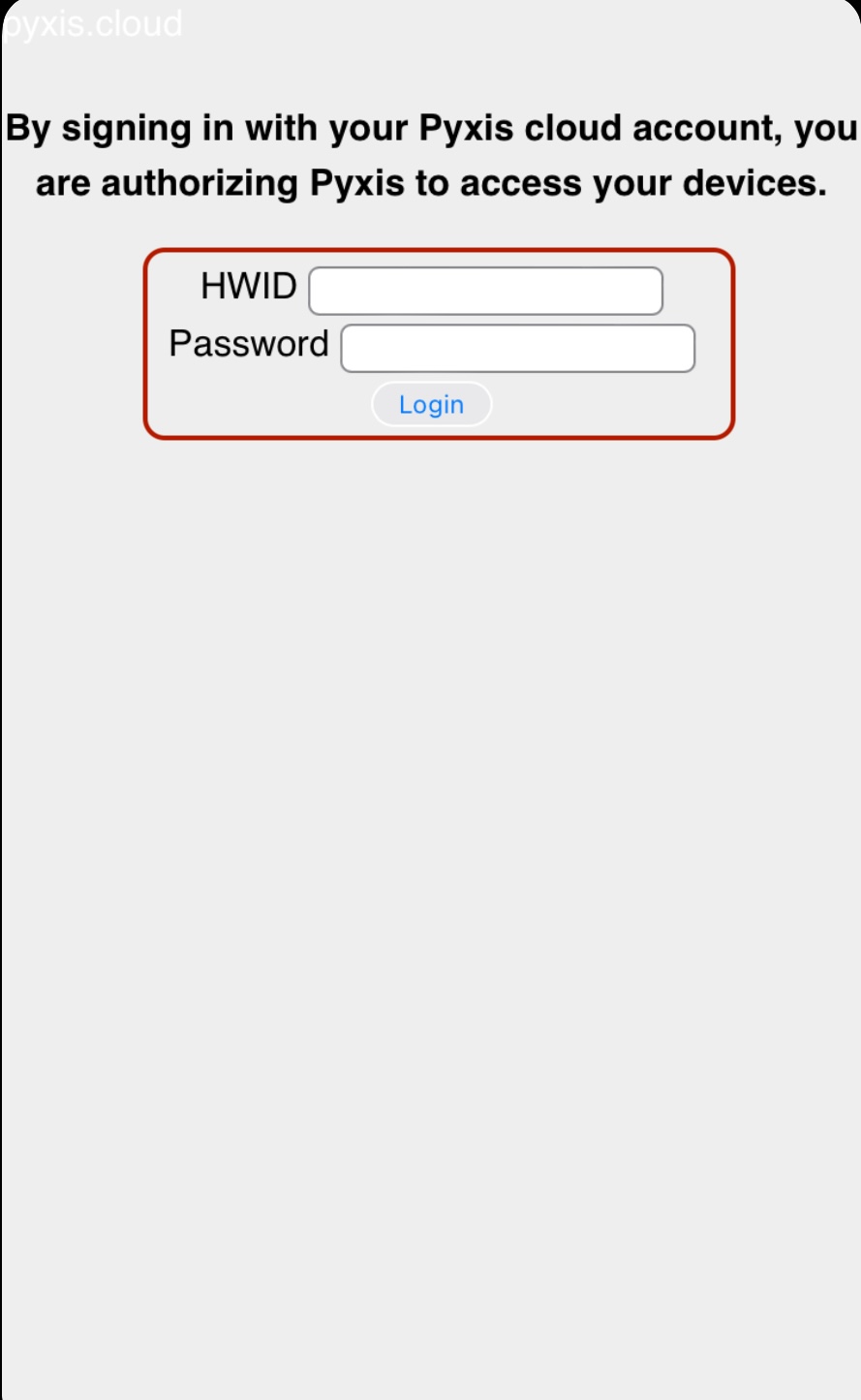
d) You will be redirect to authorization page. Put HWID of your mini PC or PLC and password from section “Profile" (default – admin).
e) Wait while your devices connect to Yandex Alice.
f) After pairing, tap on “Обновить список устройств” (“Refresh device list”).
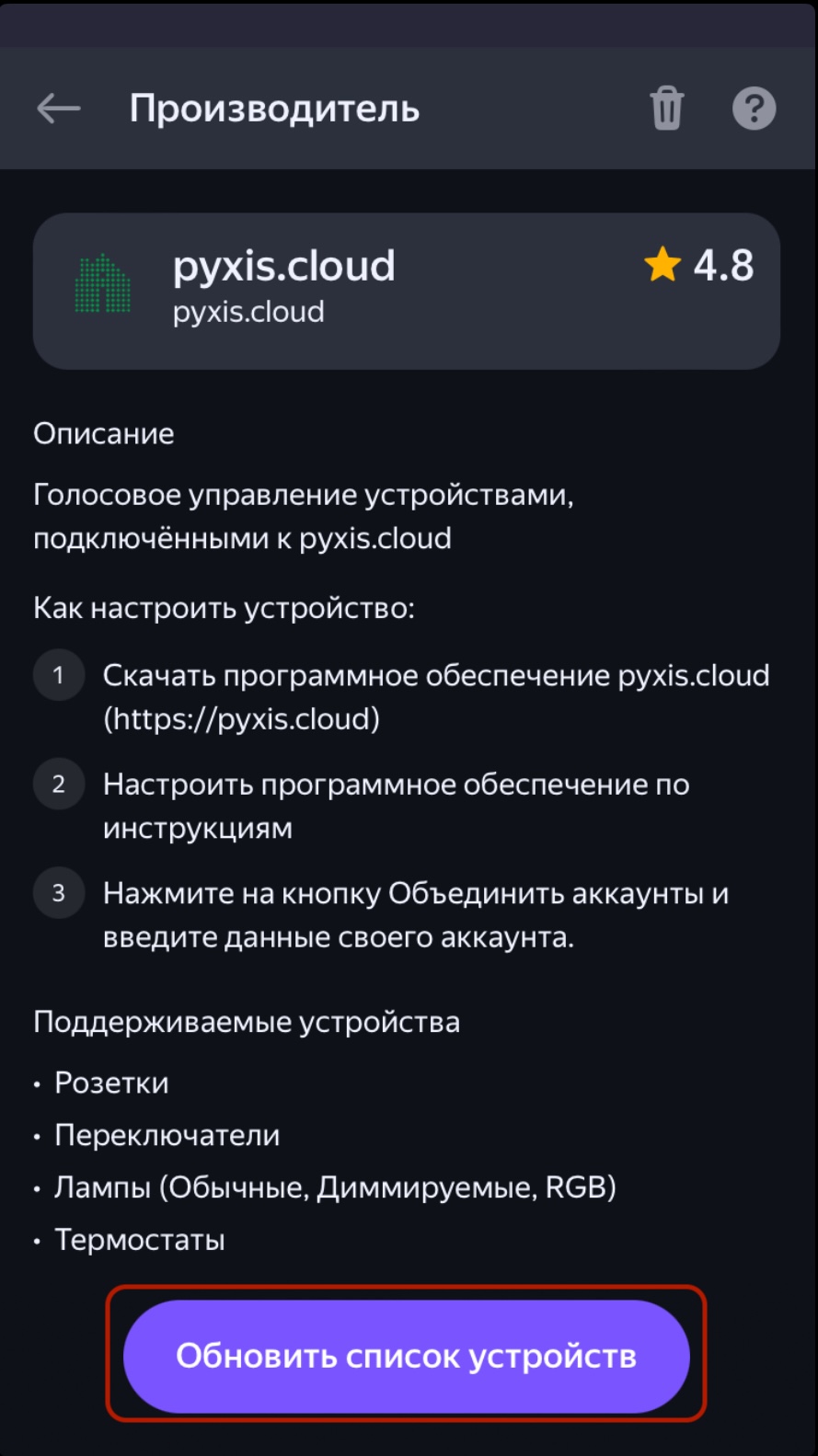
g) Wait while all accessories will appear in list. Now you can control accessories via Yandex App or Yandex Alice voice assistant.
¶ Marusia
Pyxis provide integration with Marusia. Marusia - is another voice assistant in Russia. It supported only Russian language and has own framework. Please, follow next steps for using this feature:
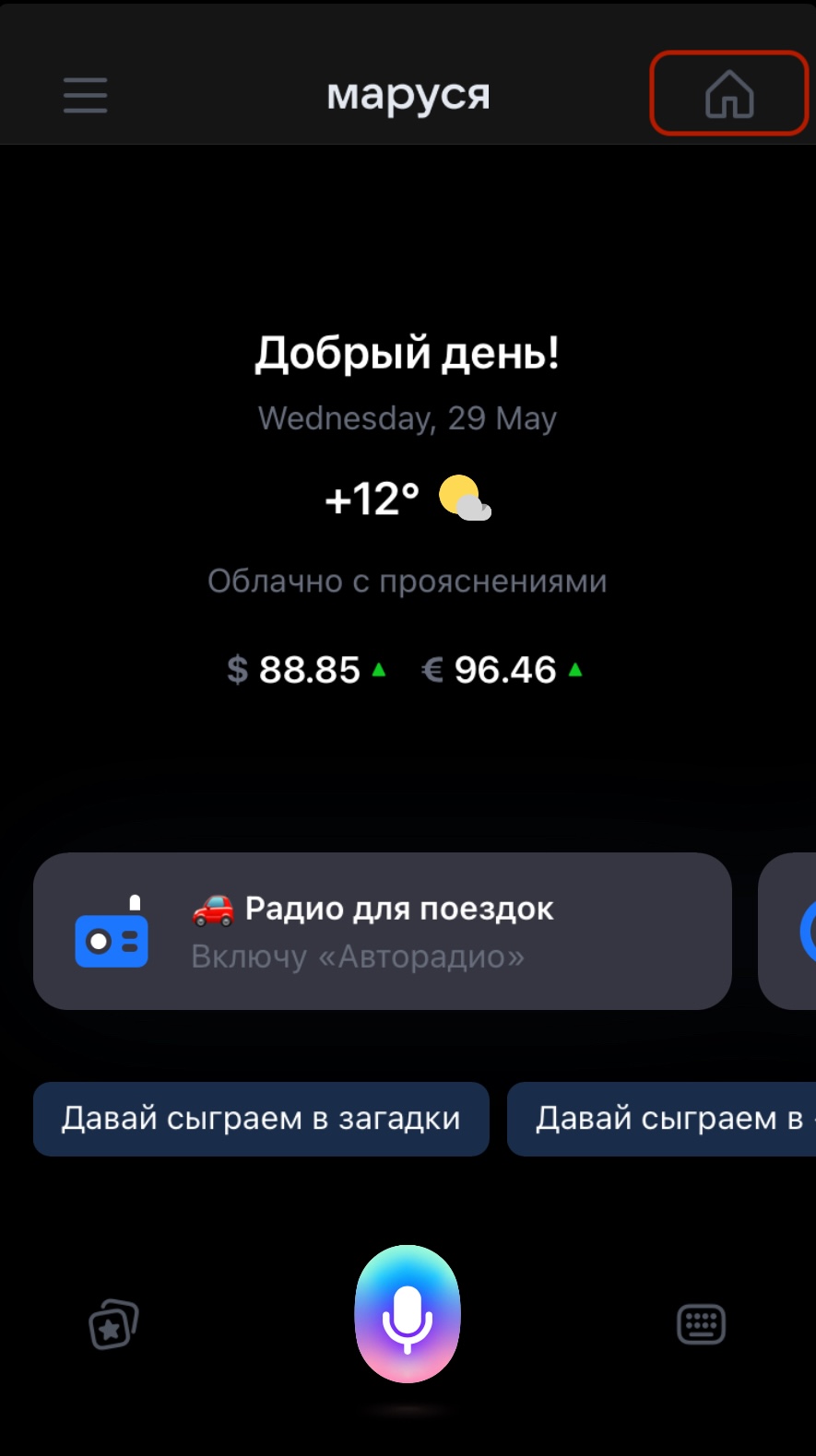
a) Open Marusia App on your Tablet or Smartphone, log in and tap on "Home"button.
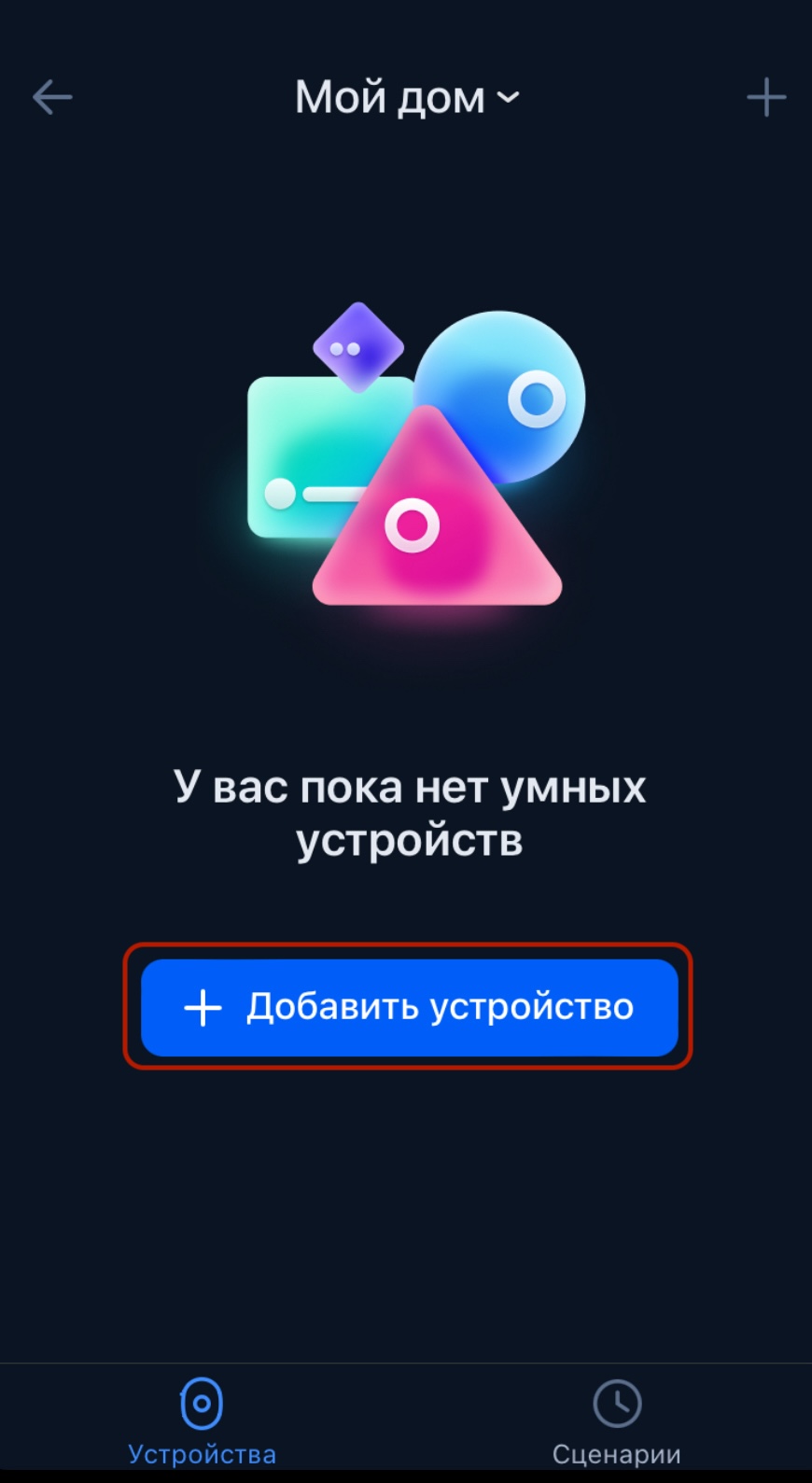
b) Tap on “Добавить устройство” (“Add device”),
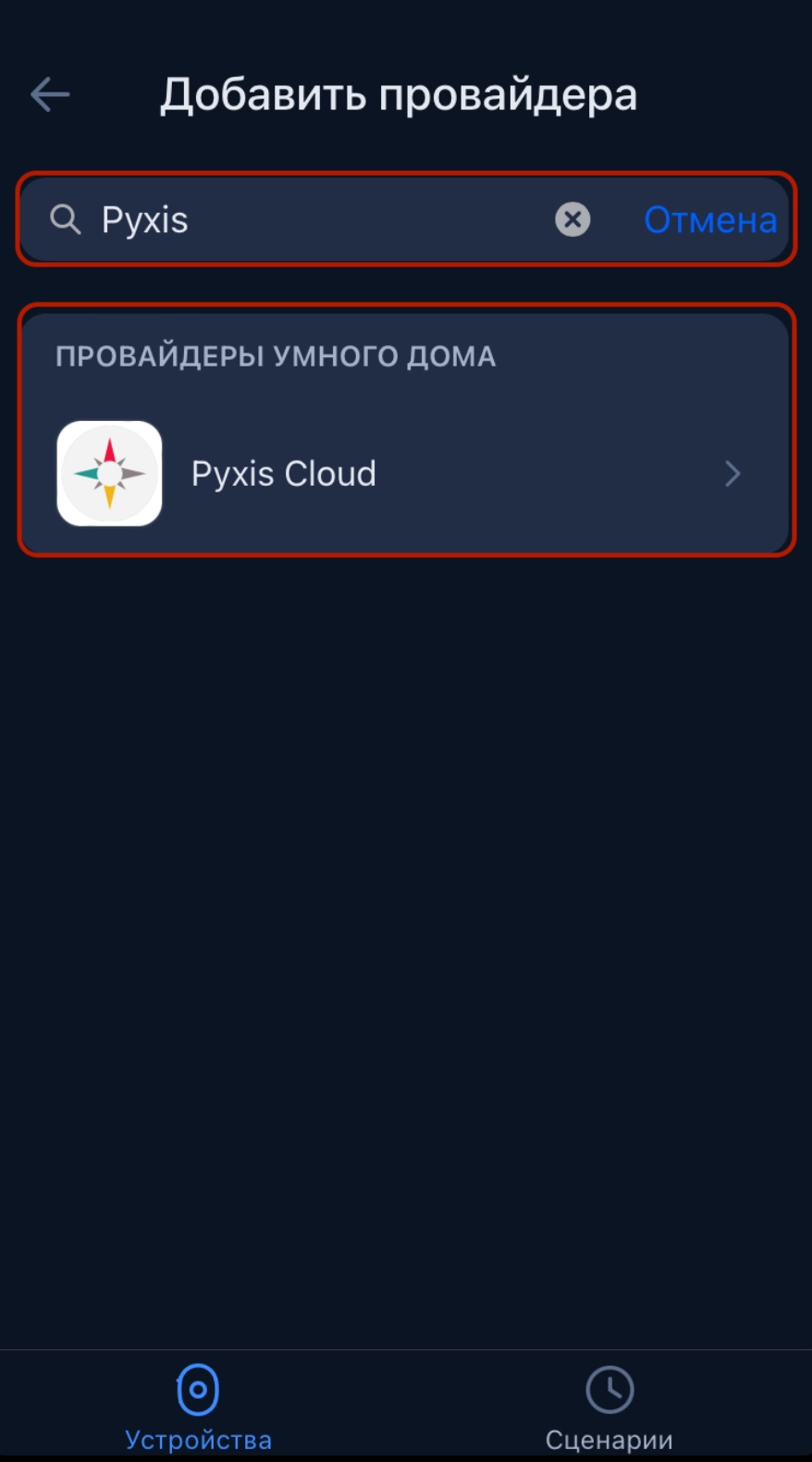
c) Put in search - Pyxis and tap on appeared skill.
d) You will be redirect to authorization page. Put HWID of your mini PC or PLC and password from section “Profile" (default – admin).
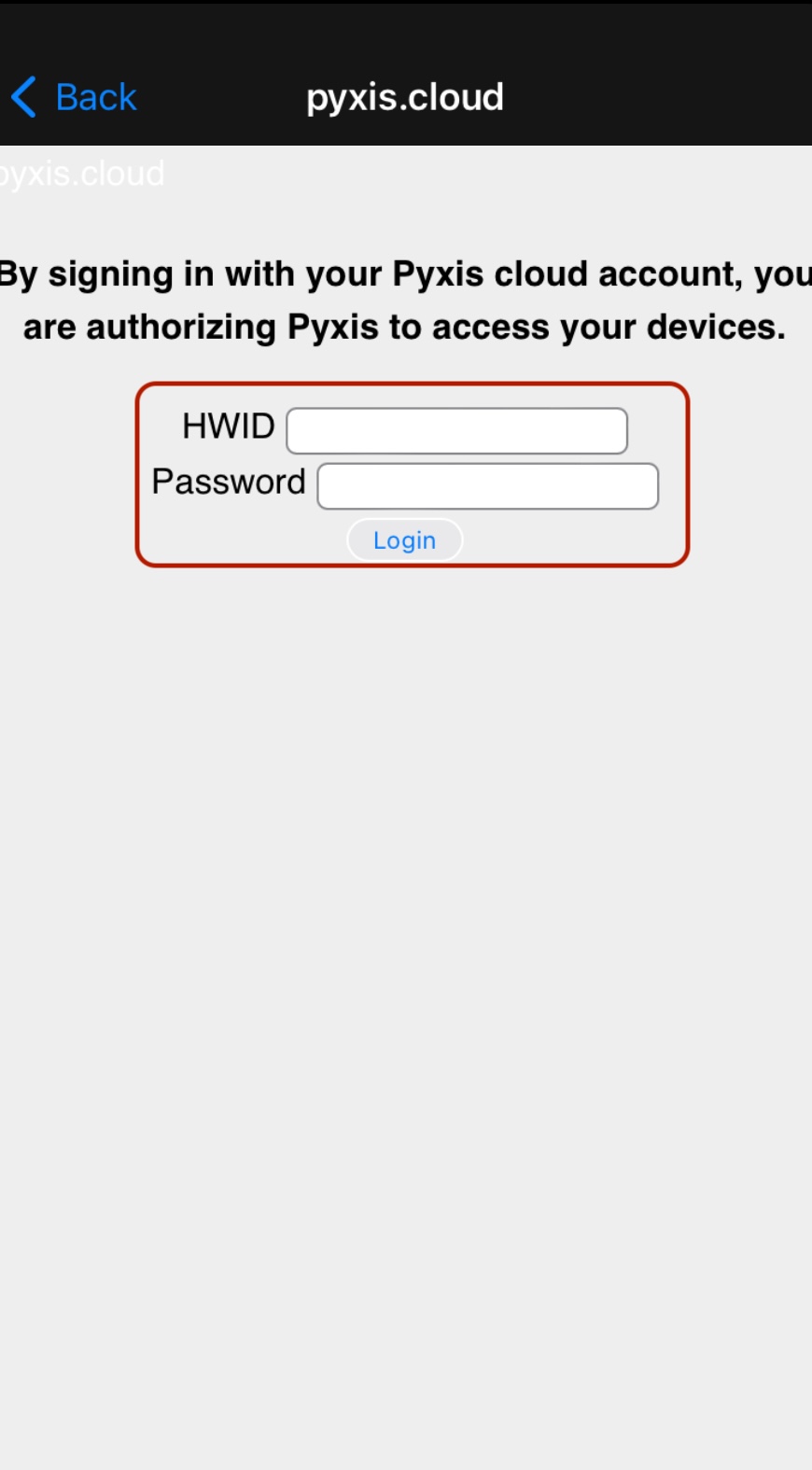
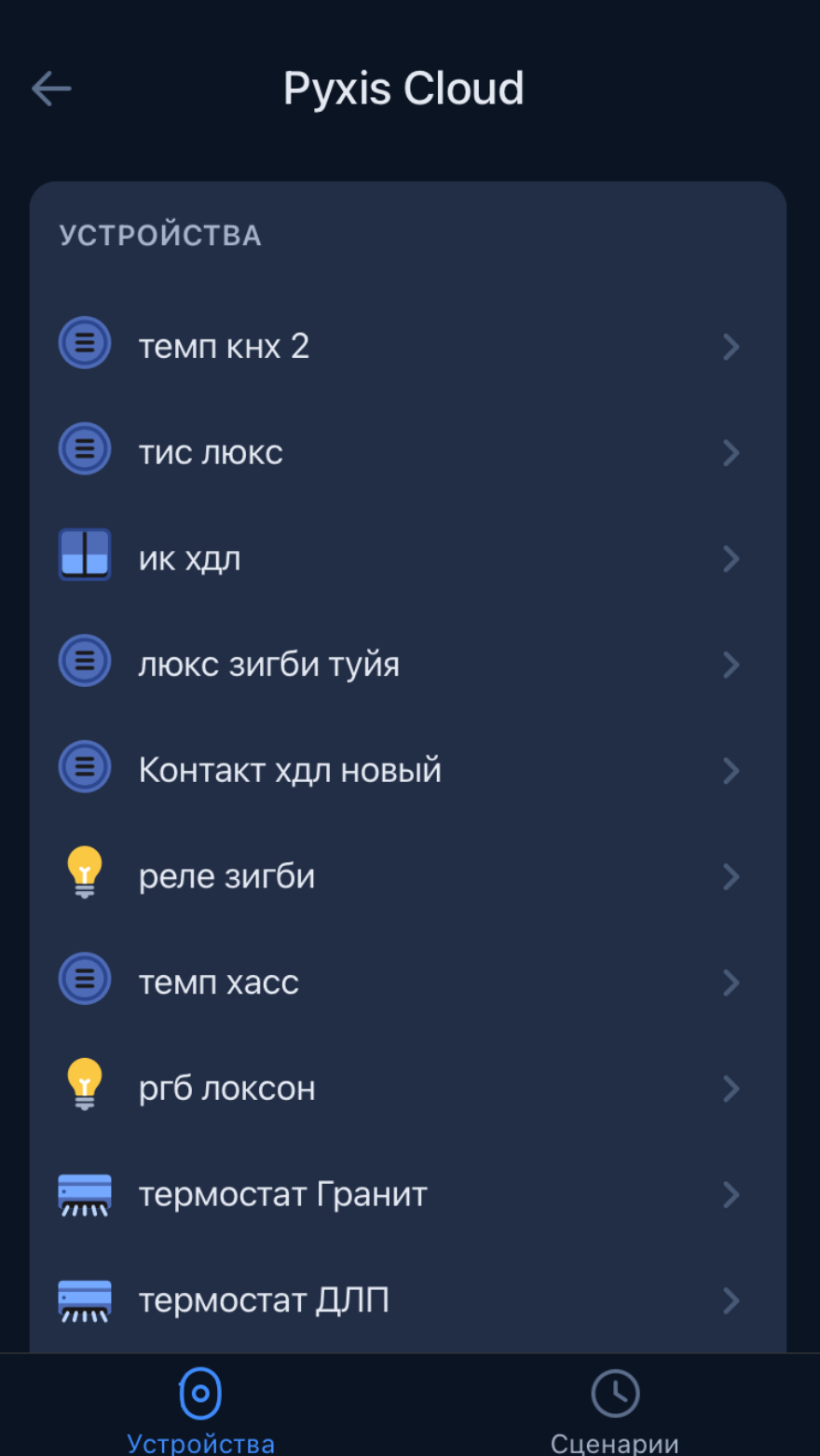
e) Wait while your devices connect to Marusia. Now you can use Marusia App or Marusia voice assistant for control accessories.
¶ Pyxis App
Pyxis has own simple app with remote control. Please, find below, steps for linking this app and Pyxis.
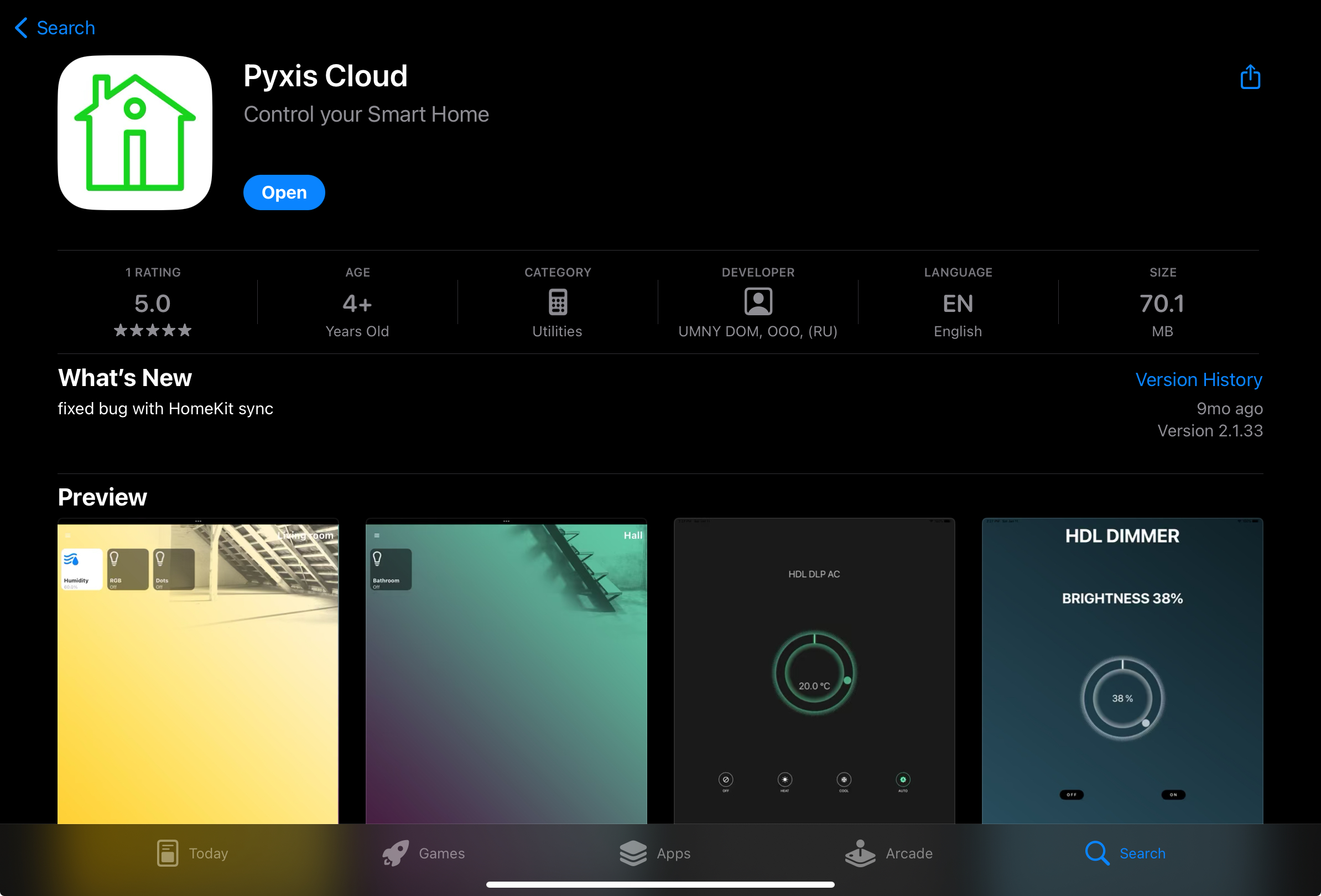
a) Find in App Store or Google Play Pyxis Cloud App and install it on your Tablet, Smartphone or Laptop.
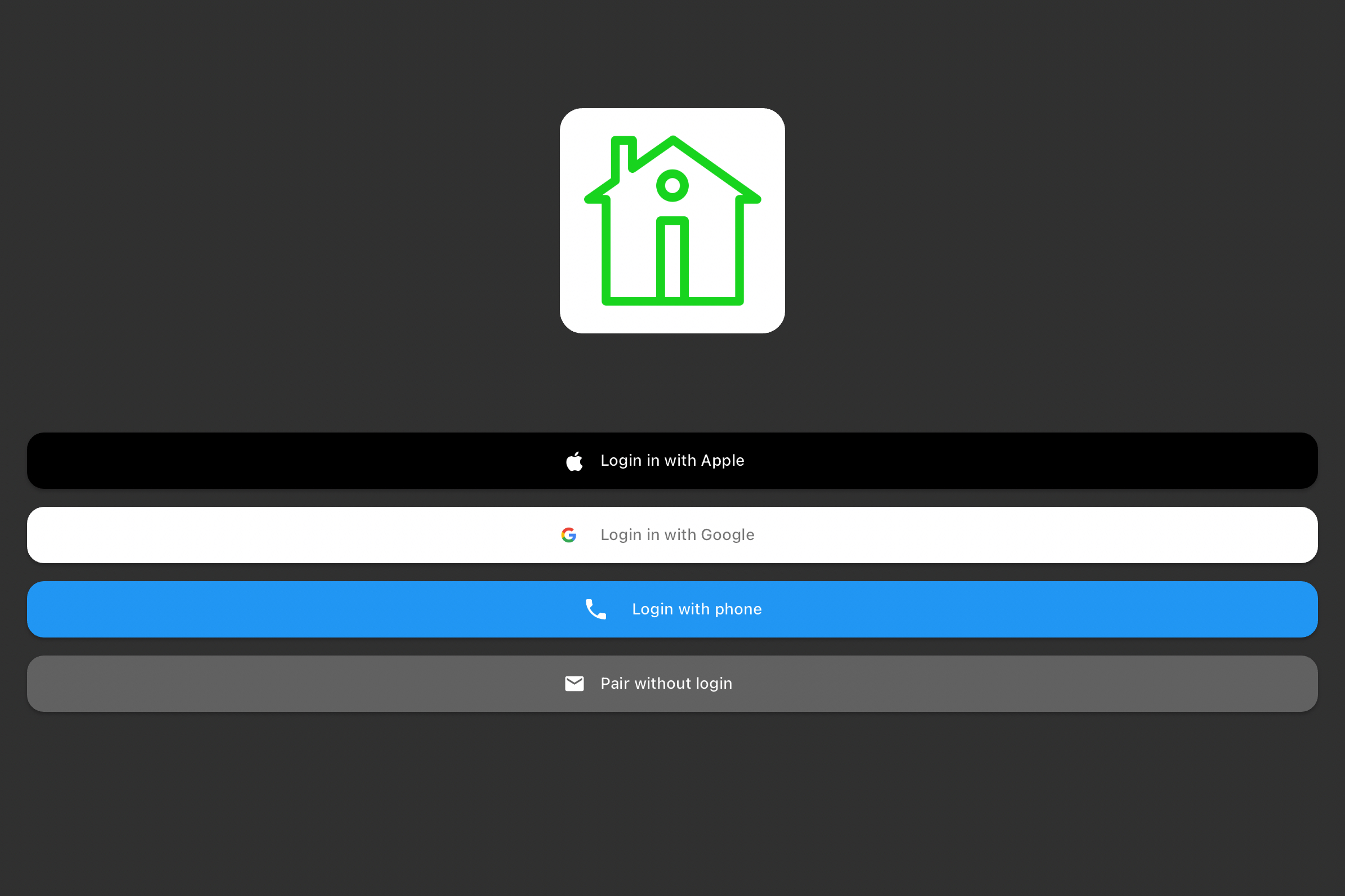
b) Open app on your Tablet or Smartphone, log in app.
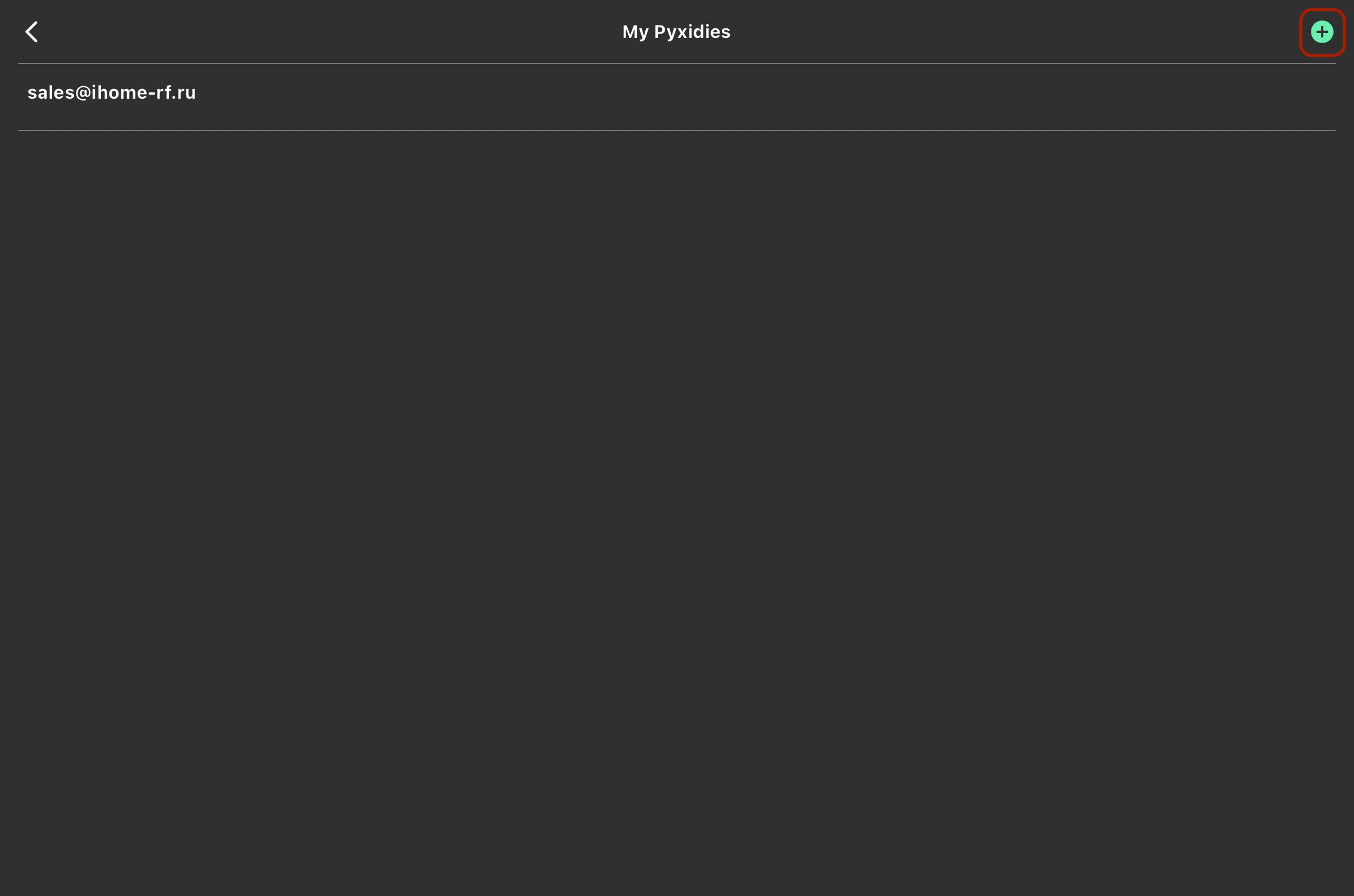
c) tap on “+” in the top-right corner,
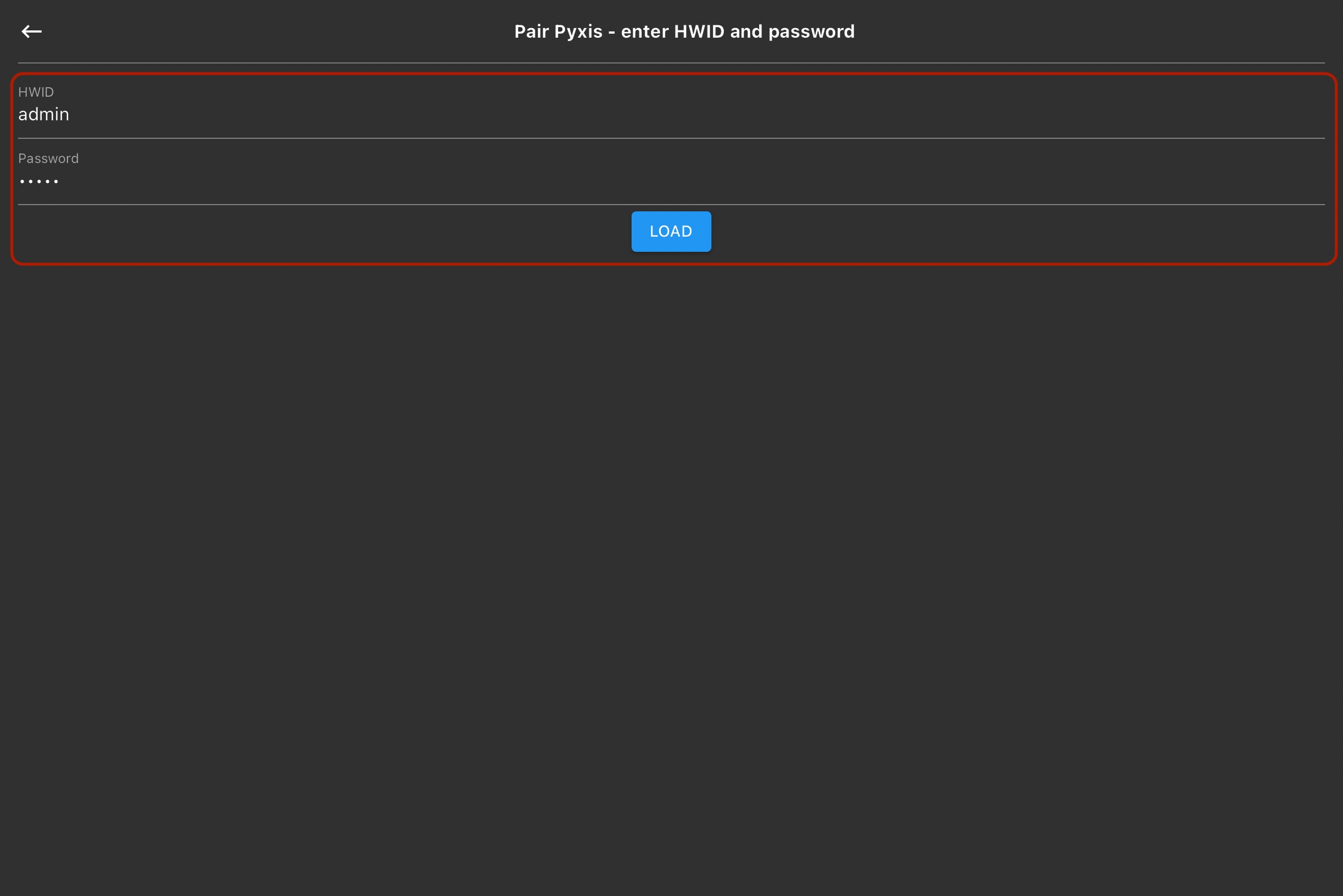
d) you will get authorization menu, put HWID of your mini PC or PLC and password from section “Profile" (default – admin).
e) if you have authorized before, you will see list of your Pyxis gateways, choose required Pyxis (HWID) and tap on “Load Pyxis”.
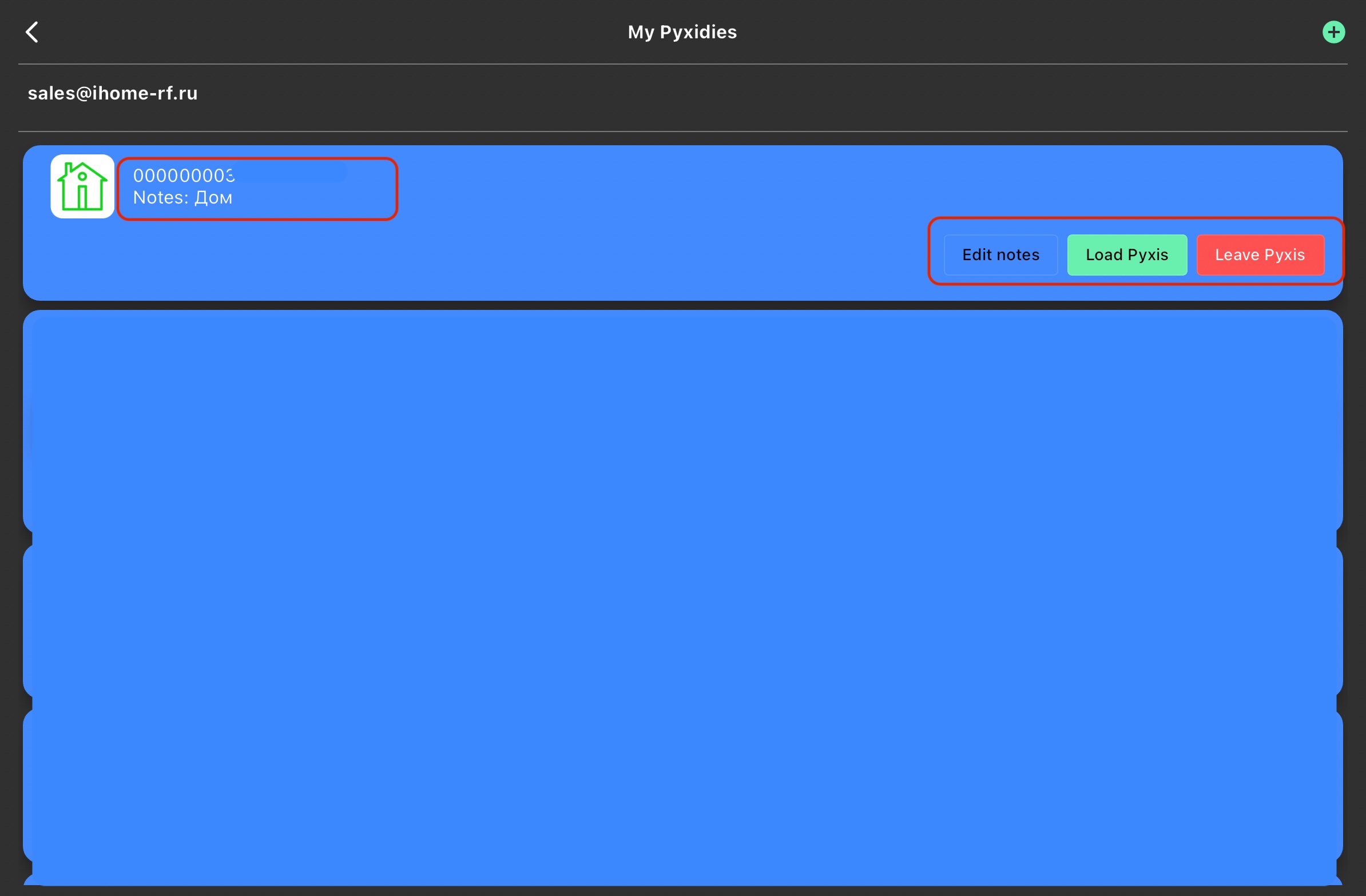
f) Wait while your devices will appears in app. Now you can control accessories by Pyxis app